

Tech Partners: VAN Canvass Responses as a Destination
Overview
This section covers information about Interactions API requests with VAN's Canvass Responses endpoint as a Destination for Interactions API data.
Interactions App
Check out our Set Up for Sources section if you do not already have an Interactions API App required for sending data to VAN endpoints.
Additional API Request Validation
Interactions API requests using an API key configured with VAN Canvass Responses as a destination are subjected to additional validation. This includes:
- The
personarray must include exactly one object withtypeof "VAN". - All survey response
outcomesDetailedobjects (indicated by the "survey_response"type) must includequestionIdandresponseId. The Interactions API only checks that these parse as positive integers; VAN rejects them later if they are not real survey question and response IDs. - All activist code
outcomesDetailedobjects (indicated by the "activist_code"type) must includeactivistCodeId. This value must be a valid VAN Activist Code ID. - The
vanFieldsobject must be provided and includecontactTypeId(required) andresultCodeId(conditionally required; see below). Both are sent as strings.resultCodeIdis required if no activist code or survey response objects are provided inoutcomesDetailed.- If one or more activist code or survey response objects are provided,
resultCodeIdshould be null. Any value you do send, including 14 ("Canvassed"), is cleared before the request reaches VAN.
An example of a valid request can be found on the API Examples page (Scenario 6).
VAN-Specific Fields: Required & Conditional
The table below describes which VAN-specific fields are required in the Interactions API request if VAN Canvass Response is a Destination on your API key. All other non-VAN-specific required fields for the Interactions API are also validated.
| Interactions API Field | Required? | Notes |
|---|---|---|
| Person ID | ||
person[].type: "VAN" | ✅ | Always required when VAN is a Destination. The The |
vanFields object | ||
vanFields.contactTypeId | ✅ | Always required when VAN is a Destination. |
vanFields.resultCodeId | 🧐 | Conditional Required when no |
outcomesDetailed — Survey Response | ||
outcomesDetailed[].type: "survey_response" | 🧐 | If including a Survey Response object, must include questionId and responseId as values. |
outcomesDetailed.value.questionId | 🧐/✅ | Required if including a Survey Response. Must be a valid VAN Survey Question ID. |
outcomesDetailed.value.responseId | 🧐/✅ | Required if including a Survey Response. Must be a valid VAN Survey Response ID. |
outcomesDetailed — Activist Code | ||
outcomesDetailed[].type: "activist_code" | 🧐 | If including an Activist Code object, must include activistCodeId and text as values. |
outcomesDetailed.value.activistCodeId | 🧐/✅ | Required if including an Activist Code. Must be a valid VAN Activist Code ID. |
outcomesDetailed.value.text | 🧐/✅ | Required if including an Activist Code. |
outcomesDetailed — Communication Consent | ||
outcomesDetailed.value.consentStatus | 🧐 | Conditional Only maps to VAN's |
| Channel — Phone Number type | ||
channel.type: "phone_number" | 🧐/✅ | Optional. Supply it for phone data to populate VAN's canvass context: |
How is data mapped to VAN Canvass Responses requests?
The table below describes how data on the Interactions API request is mapped to a VAN Canvass Response request.
| Interactions API request property | VAN Canvass Response request property | Notes |
|---|---|---|
| Static value of "11" ("API") | inputTypeId | |
vanFields.contactTypeId | contactTypeId | |
vanFields.resultCodeId | resultCodeId | |
attemptDateTime | dateCanvassed | |
person.id | vanId in request URL | Must have at least 1 type of "VAN" in person array |
outcomesDetailed.value. activistCodeId | responses.activistCodeId (in a Script Response object with type of "ActivistCode") | Must have type of "activist_code" in outcomesDetailed |
outcomesDetailed.value. questionId | responses.surveyQuestionId (in a Script Response object with type of "SurveyResponse") | Must have type of "survey_response" in in outcomesDetailed |
outcomesDetailed.value. responseId | responses.surveyResponseId (in a Script Response object with type of "SurveyResponse") | Must have type of "survey_response" in outcomesDetailed |
outcomesDetailed.value. consentStatus | canvassContext.phone. smsOptInStatus |
|
channel.value | Mapped to canvassContext.phone. dialingPrefix and canvassContext.phone. phoneNumber | Must have type of "phone_number" in channel |
Fetching VAN API transactional logs
Status and logs regarding integration with the VAN API can be fetched two ways:
- By date, using the endpoint described here.
- By
interactionId, which can be found underacceptedInteractions.data[].interactionIdinPOST /interactionsresponses, using the endpoint described here.
Admin API endpoints for VAN Keys
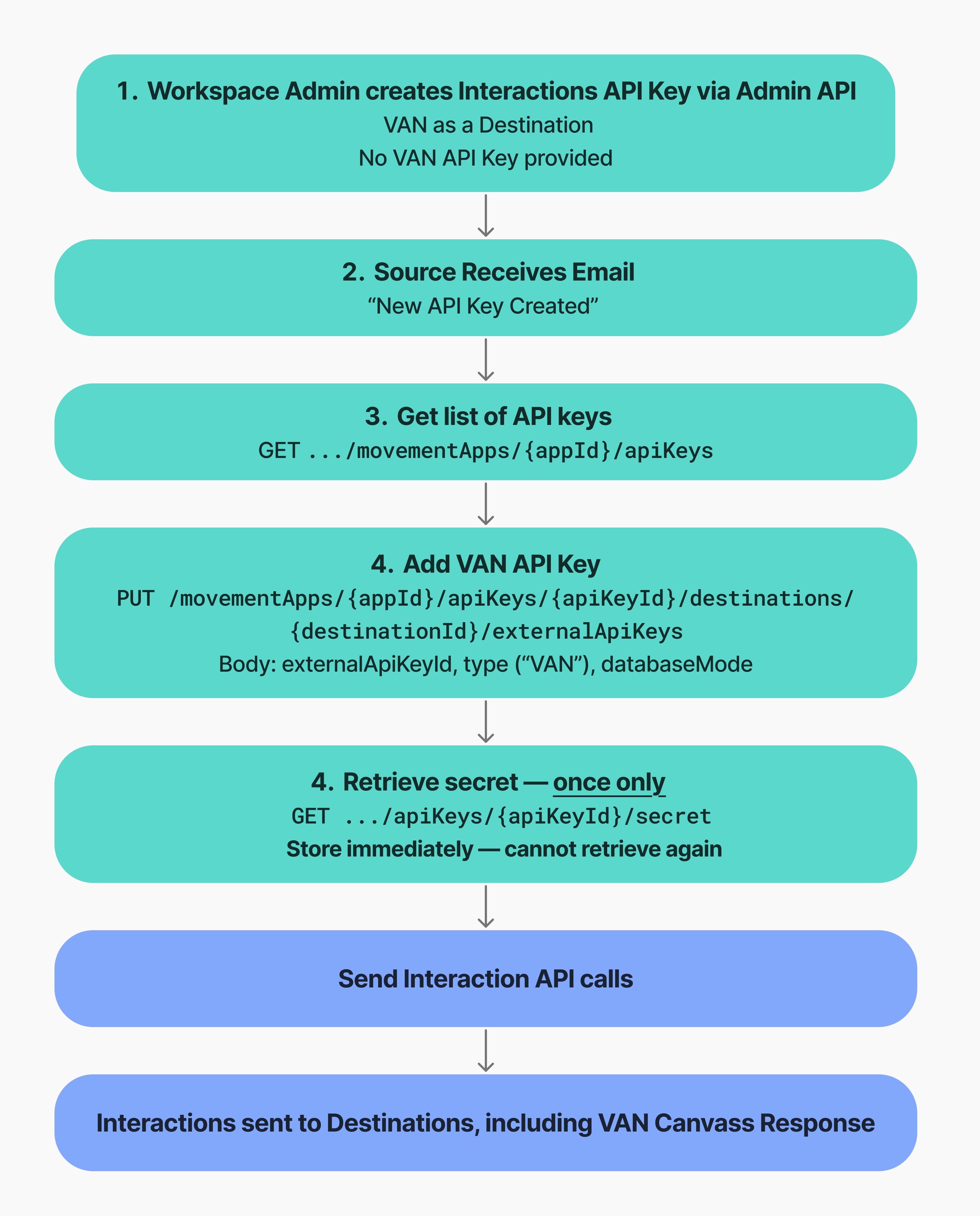
Interactions API Keys with VAN as a Destination require a VAN API Key. If the Interactions API Key is provisioned via API, the VAN API key can be added by the provisioned key Source, either at creation or afterwards via the destinations PUT endpoint.
If a data owner uses the Console to provision an Interactions API Key with VAN as a Destination, the VAN API Key must be provided by the data owner upon Interactions API Key creation.
Below is a flow chart of Admin API endpoints a Source would use to add a VAN API Key, and access the Interactions API Key secret.
Validating VAN API Key configuration
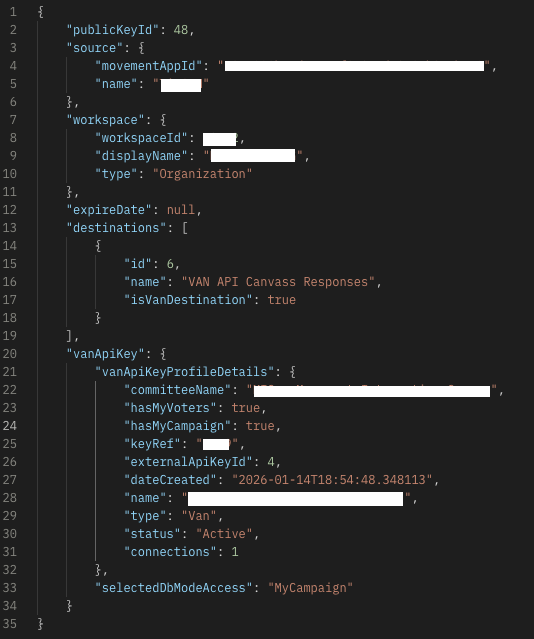
The /v1/auth/me endpoint enables two things: confirmation that you're using your key correctly and the ability to confirm the workspace, source and destination details. Note that selectedDbModeAccess is reported under vanApiKey, not under destinations.
For questions about sending data to VAN's Canvass Responses endpoint please reach out to us at [email protected]!
Updated about 2 months ago