

Connecting to an App
If you're looking to Create an App, please visit the Getting Started Page!
Connecting an App to A Workspace in the DDx API Console
To get started sending datasets through the Dataset Exchange API, connect to the Applications your organization wants to retrieve or submit your datasets. You can later choose which tools have permission to access specific datasets, giving you full control over data visibility.
You must be a Workspace Admin or Workspace Owner to connect an App. Workspace Users can view datasets and adjust dataset permissions, but cannot connect or disconnect Apps.
-
On first sign-in to the DDx API Console you'll be asked to choose a role, and should select
Data Owner. If you've chosen before, use the Data Owner / Tech Partner switcher next to the dashboard title: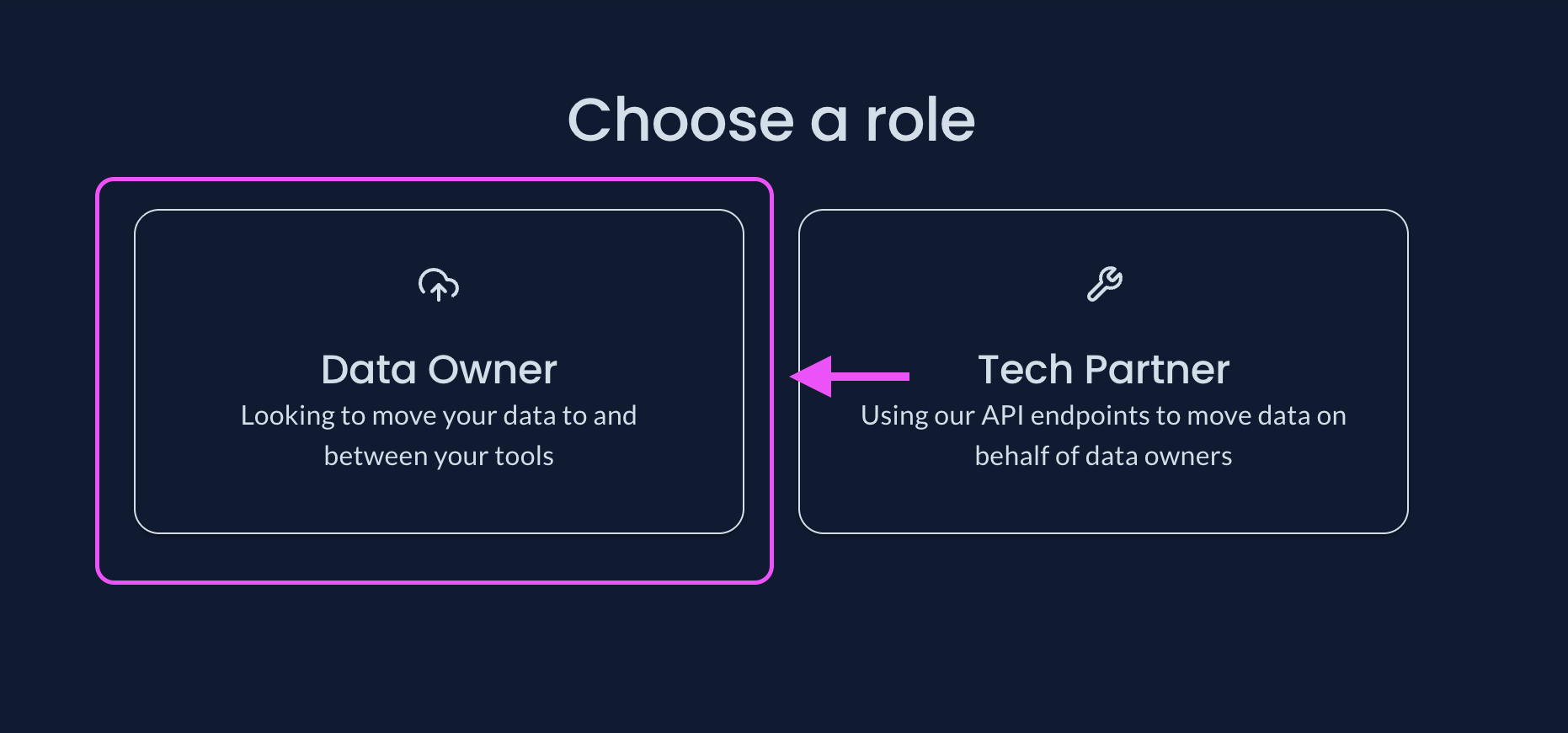
-
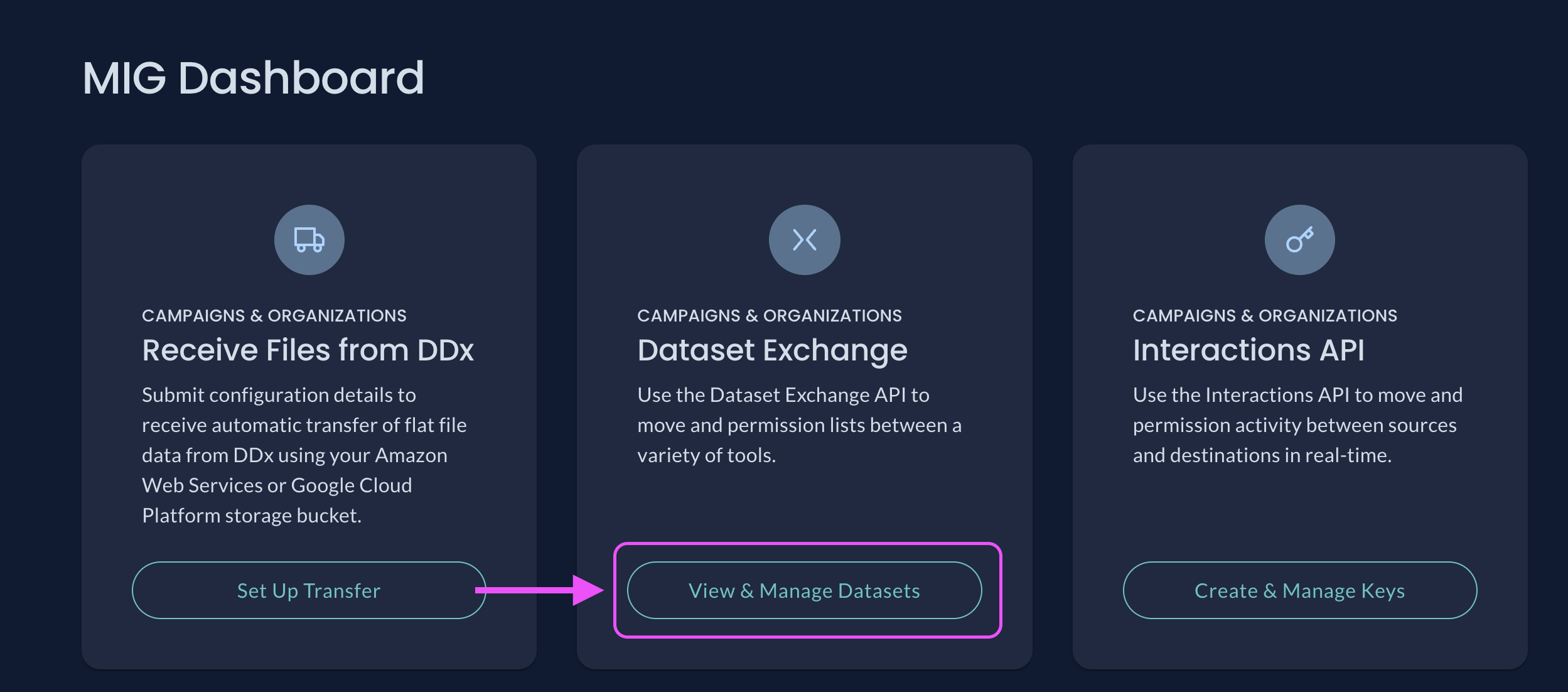
Select "View & Manage Datasets" in your Workspace Dashboard. If the tile reads "Request Access" instead, the Dataset Exchange API isn't enabled for your Workspace yet. Click it to request access:
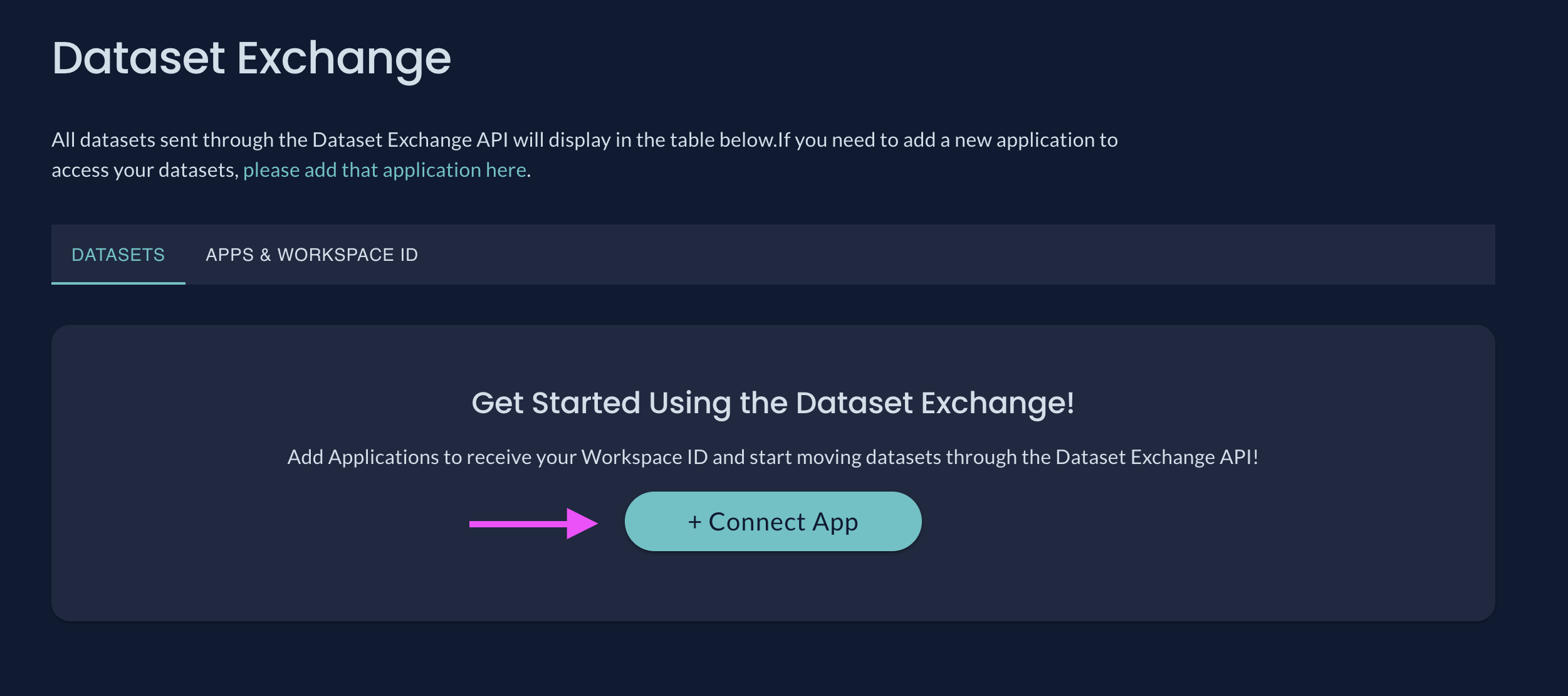
- Select "Connect App" to see available Applications using the Dataset Exchange API:
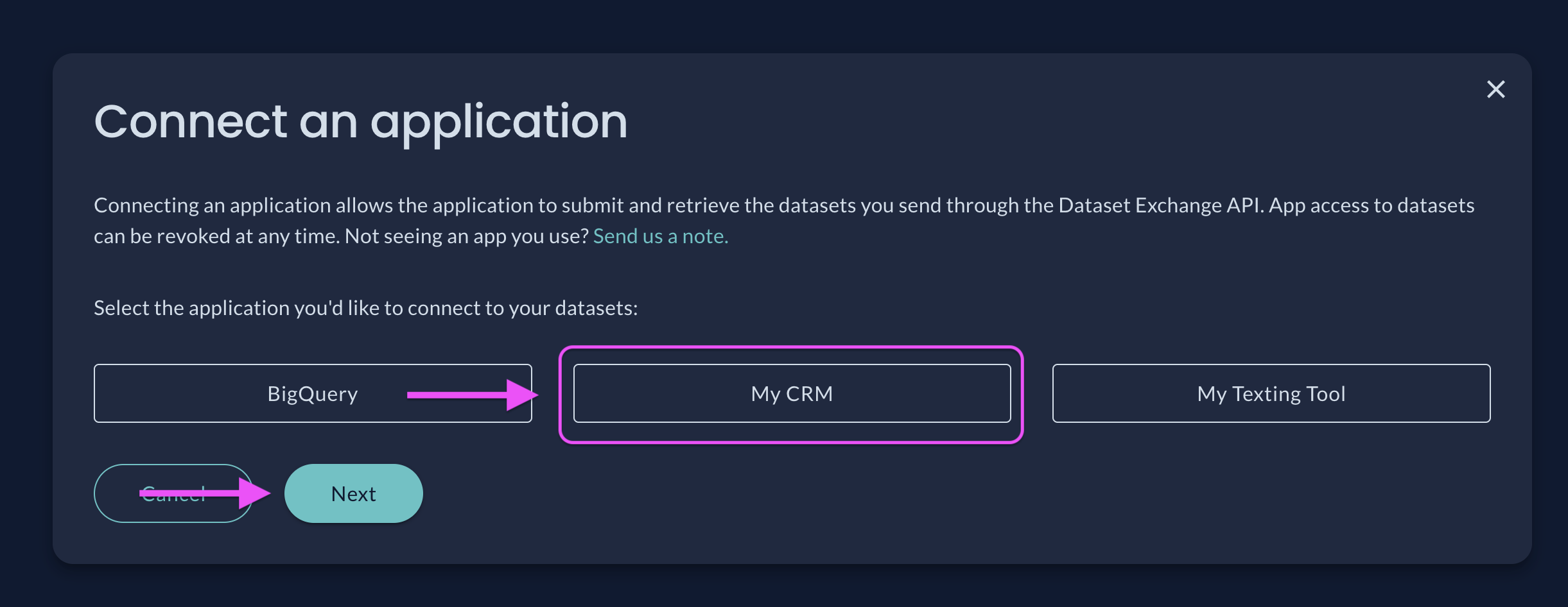
- Select the App you'd like to give access to your datasets:
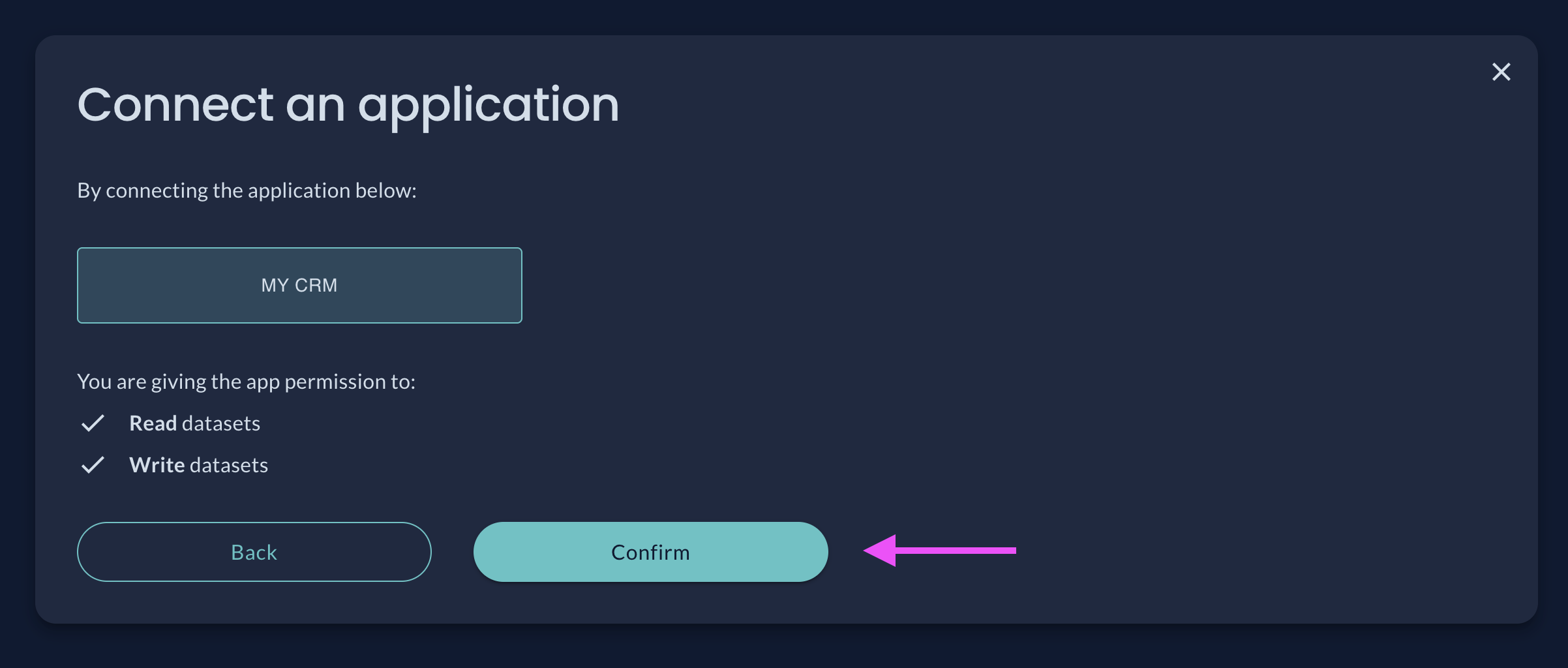
- Confirm you want to give the selected App access to your datasets:
Take note of your Workspace ID and Workspace Key! In order to complete the set-up process you'll need to provide your Workspace Key to the App you've connected with:
After you complete the App connection process, you must provide both your Workspace ID and your Workspace Key to the App you've connected with in order for them to access your datasets! The App uses your Workspace ID to identify your installation, and your Workspace Key to authenticate to it.
App permissions are not retroactive! Adding an App only grants them permission to access datasets submitted after the connection date, and only where the submitting App doesn't specify a narrower permission list. To grant permission to existing datasets, please visit the Adjusting Permissions section.
Updated 2 months ago