

Creating an App
For Vendors and Tools: To begin testing an App or make your App available to users, create a DDx API account, request an Organizational Workspace for your tool and create an App in the DDx API Console.
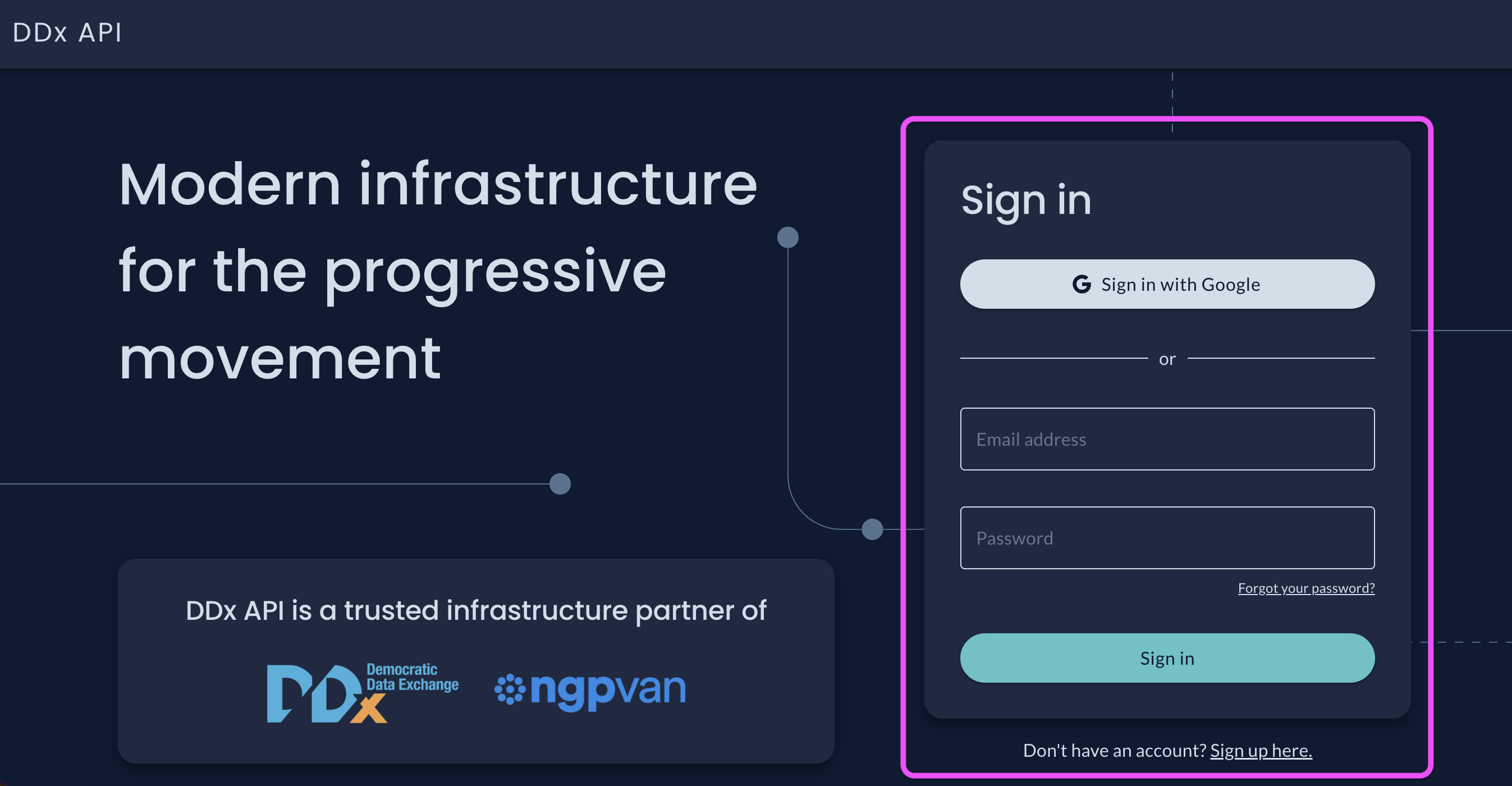
- Sign in or Create an Account in the DDx API Console. Once your account is created, reach out to us at [email protected] or directly to our Client Success team to enable your Organizational Workspace.
-
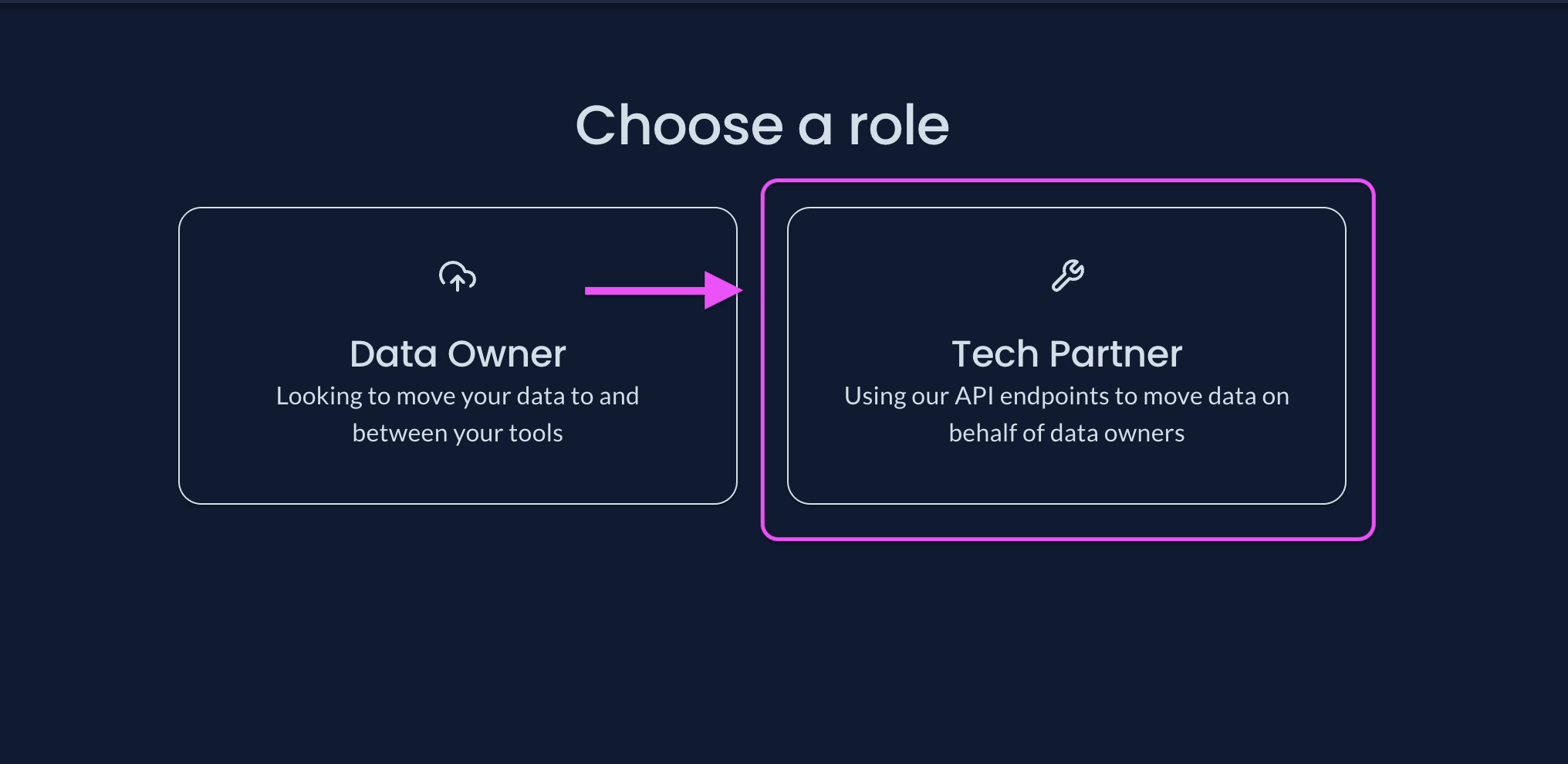
Choose the Tech Partners role to access App creation
-
Go to
Create & Manage Applications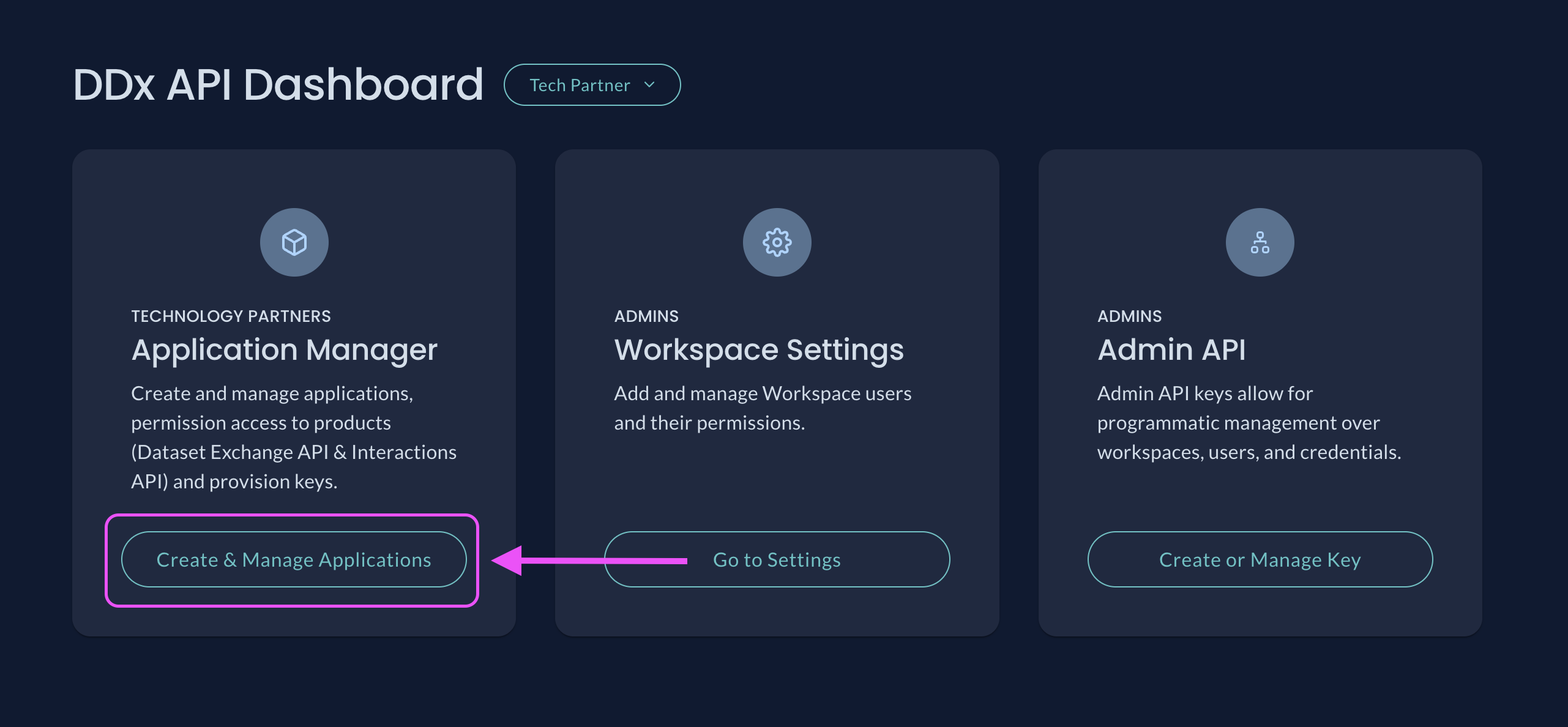
-
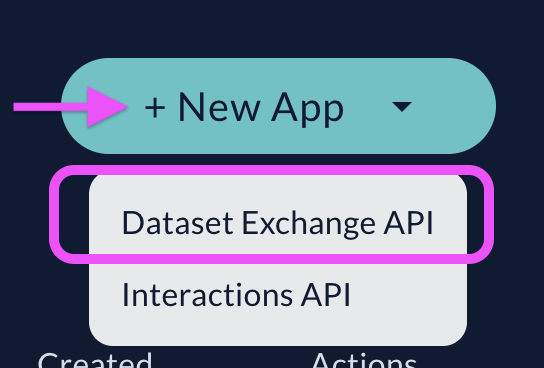
Click
+ New Appand selectDataset Exchange APIfrom the dropdown menu
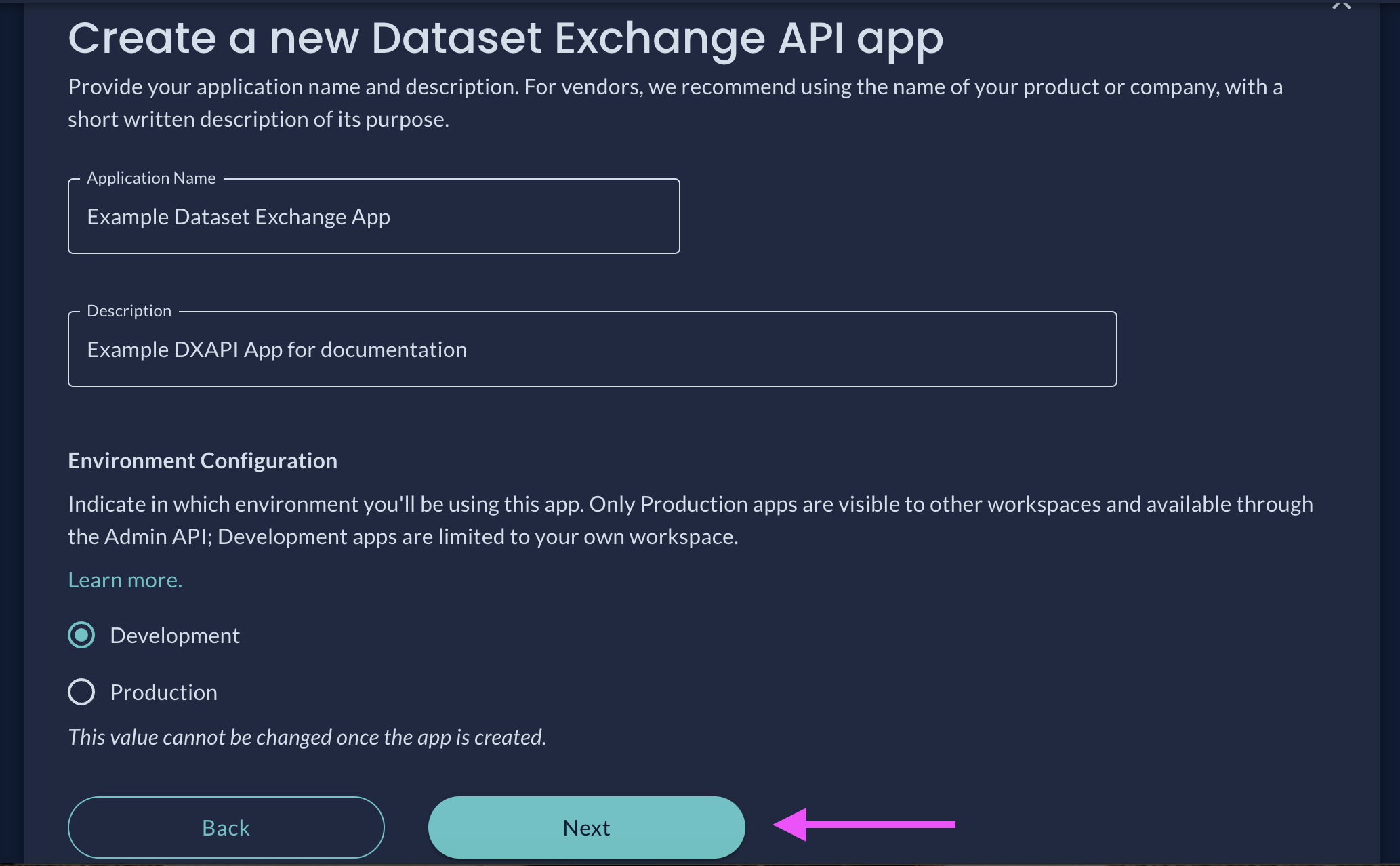
- Create the Dataset Exchange API App. An App name and the environment in which the App will be active are required; a short description is optional but recommended. Please note, if you create this as a Production App, the name and description you write will be visible to other DDx API Console users once DDx approves it for sharing.
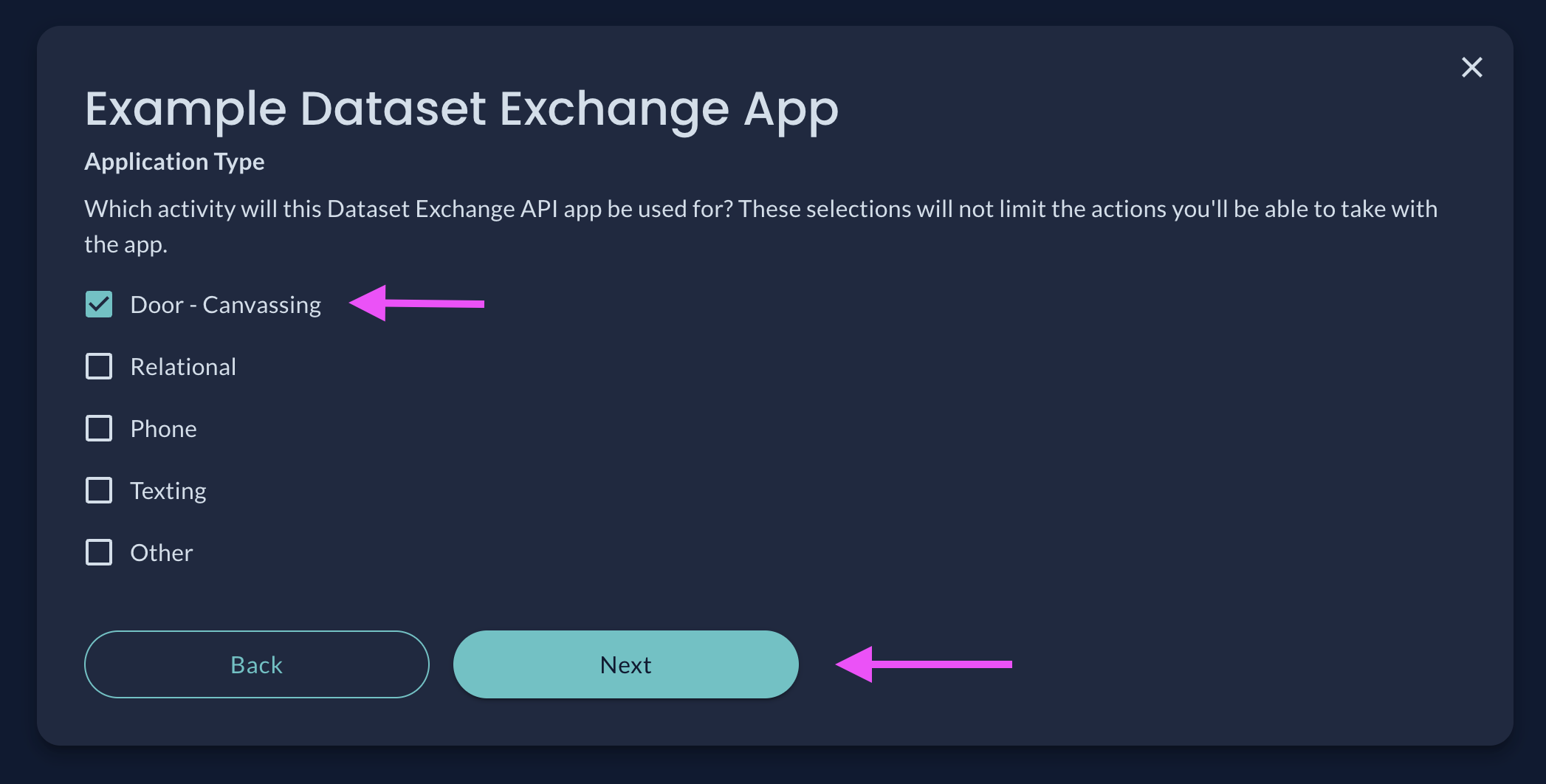
- Select an App Type. These selections will not impact access to or interactions with the Dataset Exchange API, they are informational only.
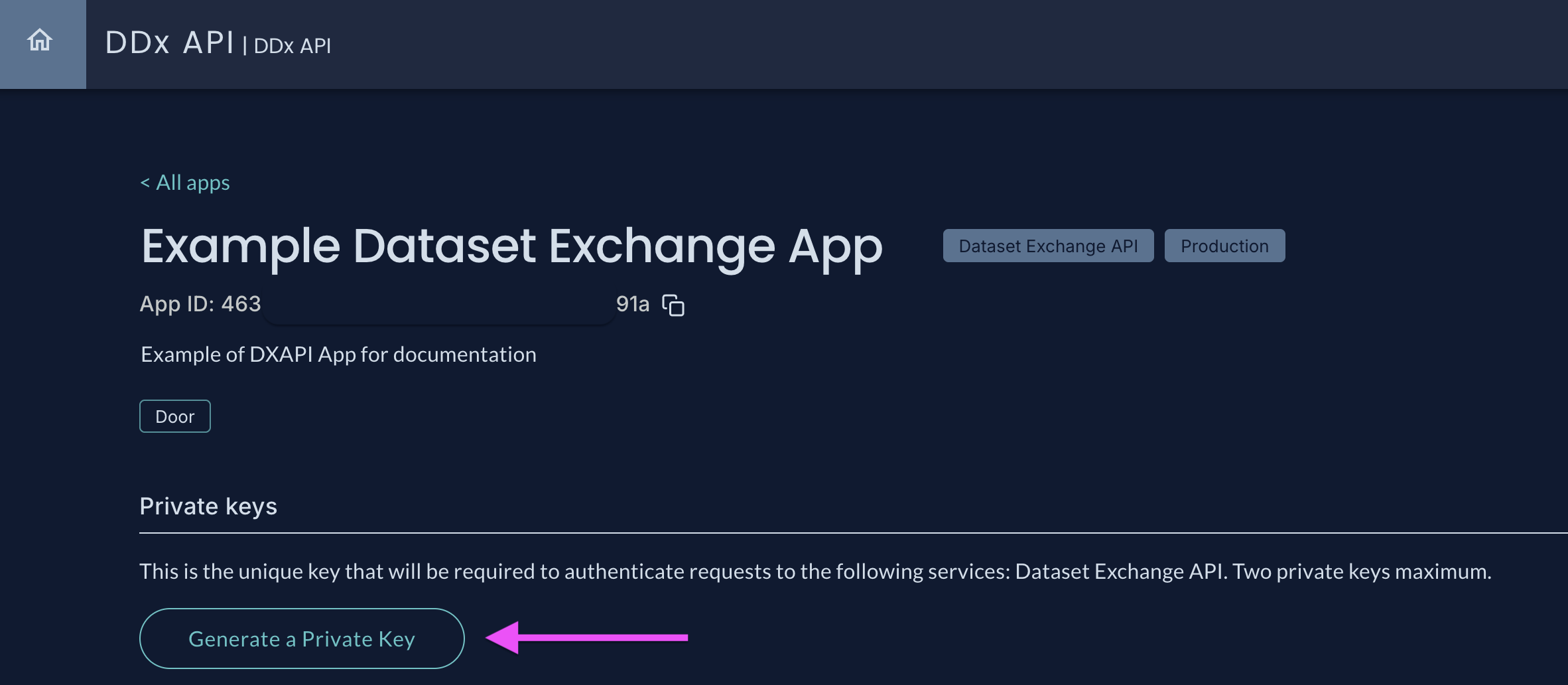
- After an App has been successfully created, Private Keys can be generated and the App ID is available to view.
About Private Keys
Generating Private Keys: Private Keys should be generated in the DDx API Console (see screenshot above) and stored securely.
Private Key Use: Private keys are used by dataset submitters and destinations to sign a system-level JWT, which is then exchanged for a time-limited, installation-scoped Client Data Access (CDA) token. See Authentication.
Private Key Security: Private API Keys are secrets and should not be publicly accessible in areas such as GitHub, client-side code, etc.
Dataset Owners, Campaigns, and Organizations should Connect to an App to complete the process for using the Dataset Exchange API.
Updated 3 months ago
Did this page help you?