

Sending to DDx Exchange
TheDDx ExchangeApp is only for sending data to the Democratic Data Exchange.To receive subscriptions & one-time downloads from the Exchange, you will need to use the
DDx Exchange SubscriptionsApp. You can find more information here about receiving data from DDx.
Overview
DDx Exchange clients can easily upload data to the Exchange via the Dataset Exchange API, a product of the DDx API team.
With a storage bucket provisioned and maintained by the DDx API team, data is securely transferred to the Exchange and ingested for credits. Exchange clients can enable a set-it-and-forget-it integration which automatically transfers data to the Exchange whenever a client adds new data to be transferred.
The DDx Exchange App currently only supports data ingestion. To receive subscriptions & one-time downloads from the Exchange, you will need to use the DDx Exchange Subscriptions App. You can find more information here about receiving data from DDx.
Workflow Setup Requirements
To set up the Dataset Exchange API to DDx Exchange workflow, the following items are required:
- A current Exchange client agreement as either single organization or an enterprise member organization
- Data to share with the DDx Exchange
- A client or tool that can write objects to a Google Cloud Storage bucket using a service-account JSON key. You do not need your own GCP account or bucket. DDx provisions the bucket and issues the credentials.
- How to: Configure access using GCP
- Clients who use S3 will continue to be able to use flat file transfer and will be supported on the Dataset Exchange API later in 2026!
- A DDx API Console Account:
- The DDx API Console requires users to be part of an Organizational Workspace for configuring integrations. This is where Exchange clients can connect to the Exchange via the Dataset Exchange API. Once an account is created, the Exchange client status will be verified and access to setting up the connection will be approved. To set up an Organizational Workspace, review the steps here!
Existing Exchange clients with Personal Workspaces:
Request an Organizational Workspace by reaching out to [email protected] or directly to the Client Success Team. DDx will set your Exchange client slug on your Organizational Workspace; the Workspace name itself does not have to match the slug.
Existing Exchange clients with Organizational Workspaces:
Contact us to confirm your Exchange client slug is set on your Organizational Workspace, and reach out to [email protected] if you have any questions!
New Exchange Clients:
Get an Organizational Workspace by submitting a request to [email protected]
- If you are an Exchange client who uses the flat file transfer service, you have the option to migrate your transfer to the Dataset Exchange API flow.
Data Transfer Formatting RequirementsData Formatting RequirementsDDx API follows the standard data type names from DDx’s data dictionary and you must set up your CSV file to follow the same column order of DDx's data dictionary. Data will not be transferred correctly for use in the DDx Exchange if data type names differ and/or columns are out of order. If that is the case, you may be required to resubmit your data. Reach out to [email protected] if you need an updated copy of the data dictionary!
- Review the folder structure and standardization in the example below to ensure your data is properly uploaded into your bucket, using the GCS folder setup instructions.
- Ensure your file path and filenames match i.e. the voter_registration_submissions file path should have a filename with the same convention. No shorthand!
- If you are submitting survey response files and survey question metadata, please follow the respective column header ID.
- If you require access to the DDx Data Dictionary, you can access it via your DDx Dashboard under the Resources tab, contact your DDx Exchange Client Representative, or reach out to [email protected].
- The DDx API Console requires users to be part of an Organizational Workspace for configuring integrations. This is where Exchange clients can connect to the Exchange via the Dataset Exchange API. Once an account is created, the Exchange client status will be verified and access to setting up the connection will be approved. To set up an Organizational Workspace, review the steps here!
File Structure Example
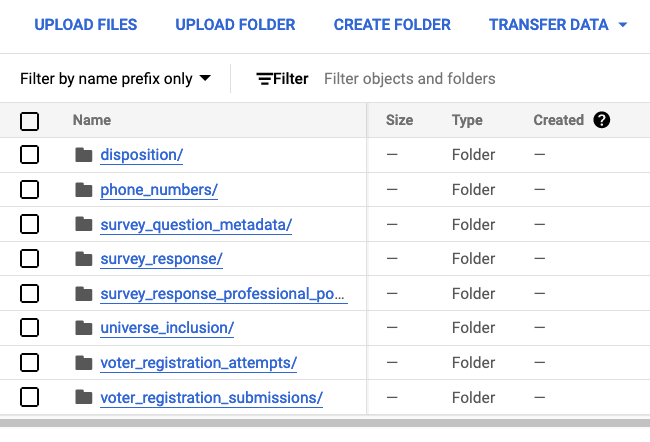
Please note: If you would like to upload a person list to share, this will be done directly in your DDx Dashboard under ‘Manage Lists’ using the List Uploader Feature.
Sending Data to the Exchange
- Log in to your Organizational Workspace
- Select
View & Manage Datasetsunder the Dataset Exchange API tile - Select the
Apps & Workspace IDtab and click the+ Connect Applicationbutton
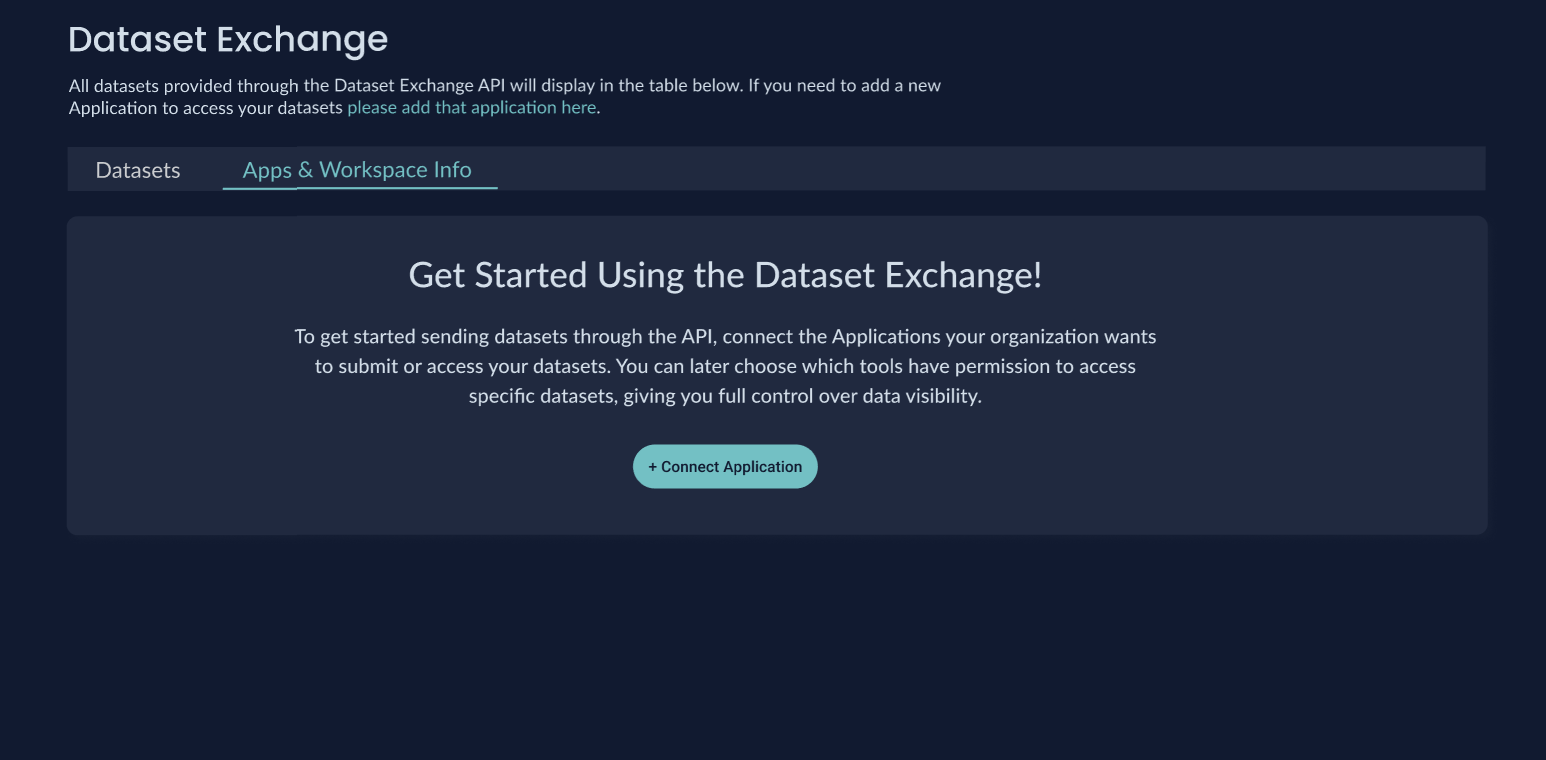
- On the
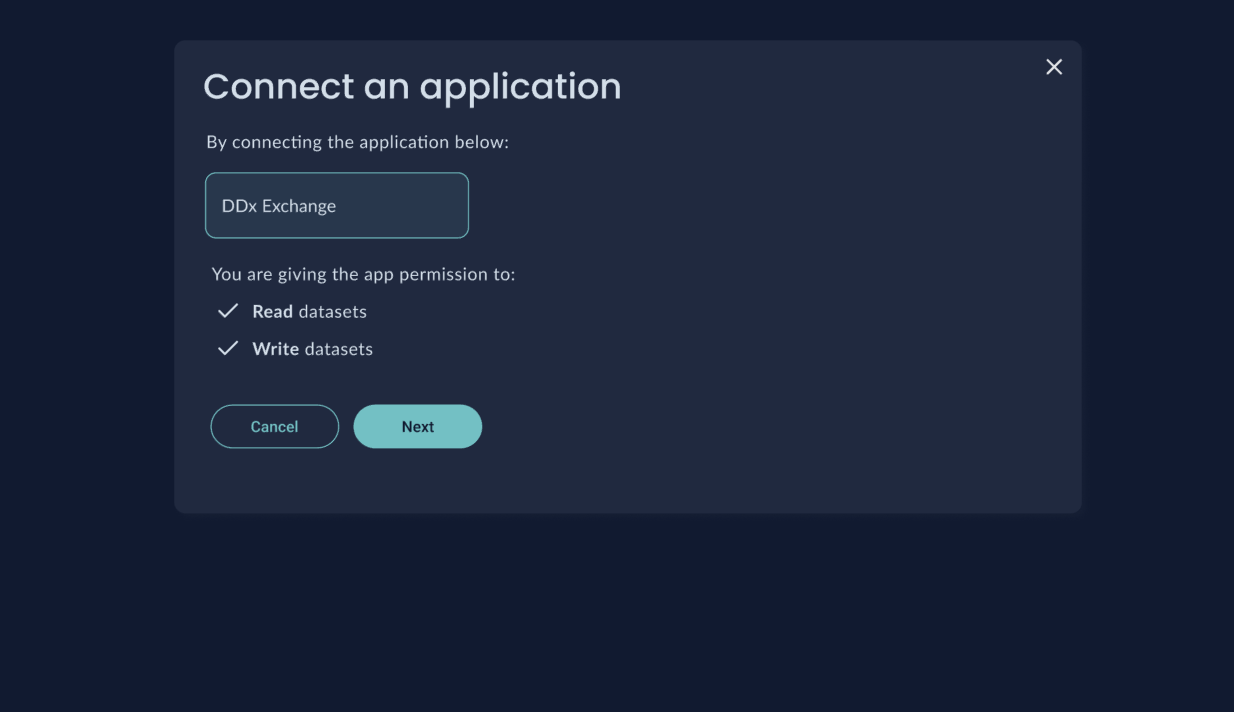
Connect an Applicationpage, select theDDx ExchangeApp.- Note: Only select the
DDx Exchangeoption. If you are interested in being able to use the Dataset Exchange API to connect to other available vendors you use, reach out to [email protected].
- Note: Only select the
- Confirm the permissions provided to the
DDx ExchangeApp by clickingConfirm.
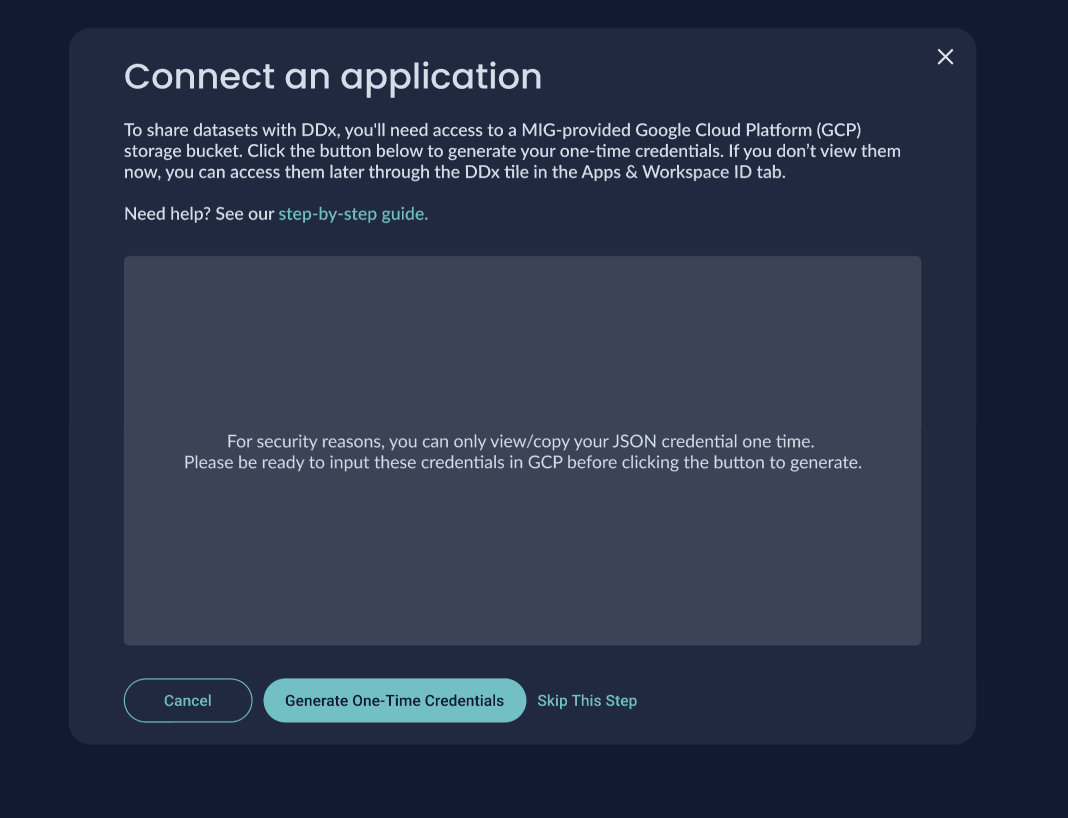
- To receive the JSON credentials, select
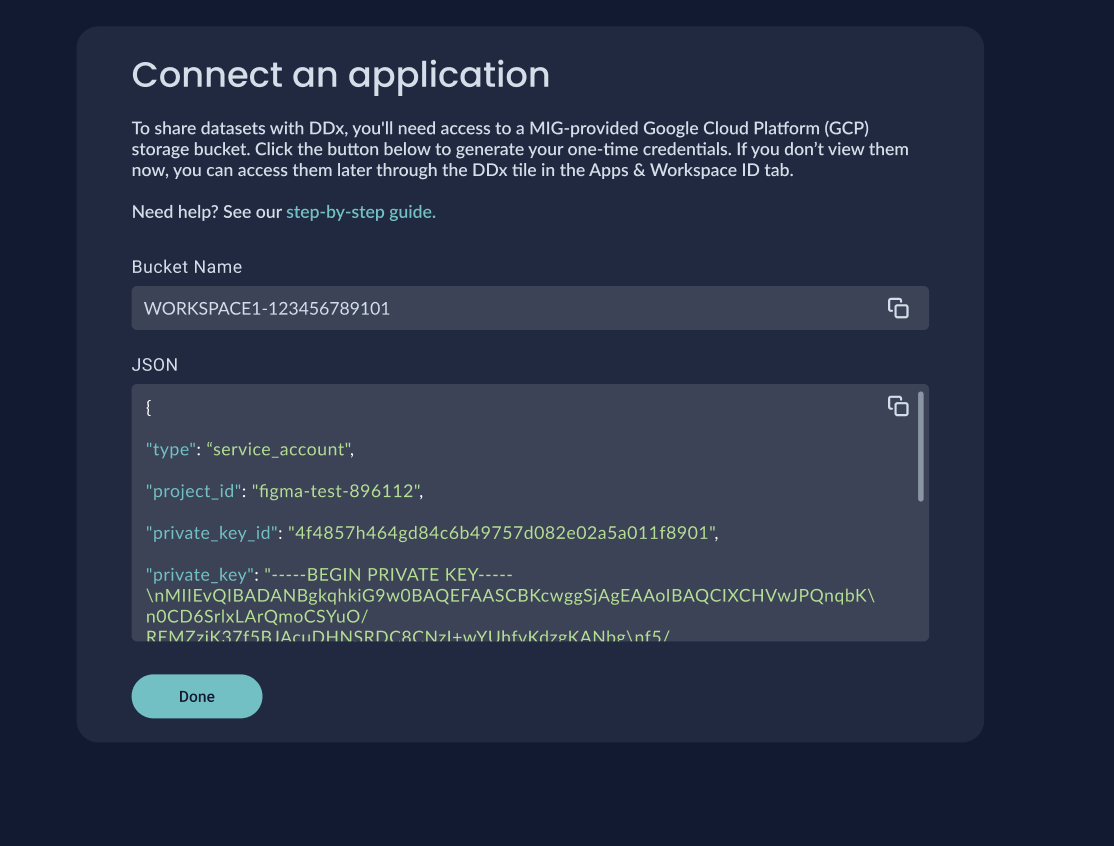
Generate One-Time Credentials. - Copy the Bucket Name shown above the JSON Credentials section, then view and copy the credentials. DDx API provisions the Google Cloud Storage bucket for you, and these credentials are a service-account key that authenticates your writes to it. You do not create the bucket yourself.
JSON credentials can only be viewed/copied one time
IMPORTANT: For security purposes, the JSON credentials can only be viewed/copied one time. Please be ready to input those credentials into GCP before clicking the button to generate the credentials.
- If selecting
Skip This Step, credentials can be generated later under theApps & Workspace IDtab. If you lose them, a Workspace Admin or Owner can reset the credentials from the same tab. Resetting revokes the previous key.
- If selecting
- Copy the credentials and paste those credentials into a file to use for authentication when connecting to the bucket.
- Once data is uploaded to the provided bucket, it will be picked up and transferred to the Exchange via the Dataset Exchange API.
- If you have a Snowflake set up or similar configuration that requires DDx API to access your service account, contact us at [email protected] to ensure proper set up!
- Ensure any data that is uploaded follows the DDx Data Dictionary and is structured correctly for being ingested into the Exchange. Review the Data Transfer Requirements above prior to upload!
Note: If you disconnect from theDDx ExchangeApp, the provided bucket, its contents, and the service account will be deleted.
Updated 2 months ago