

Data Owners: DDx Exchange as a Destination
Overview
Sending your Interactions API data to the DDx Exchange requires a few quick setup steps outlined on this page.
If you are a Tech Partner, please visit the Tech Partner integration section of this doc!
Configuring a DDx API Key for the DDx Exchange
Before you begin, please reach out to [email protected] to enable the DDx Exchange Destination for your Workspace.
-
Navigate to your Organizational Workspace's dashboard by clicking the home icon in the Console.
-
Click the
Create & Manage Keysbutton under Interactions API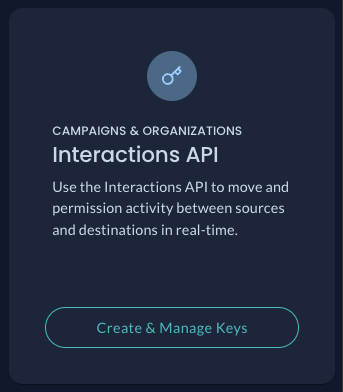
-
Click
+ Create DDx API Keybutton. If you do not see this button and have already installed or created an eligible Interactions API Source App, please reach out to [email protected].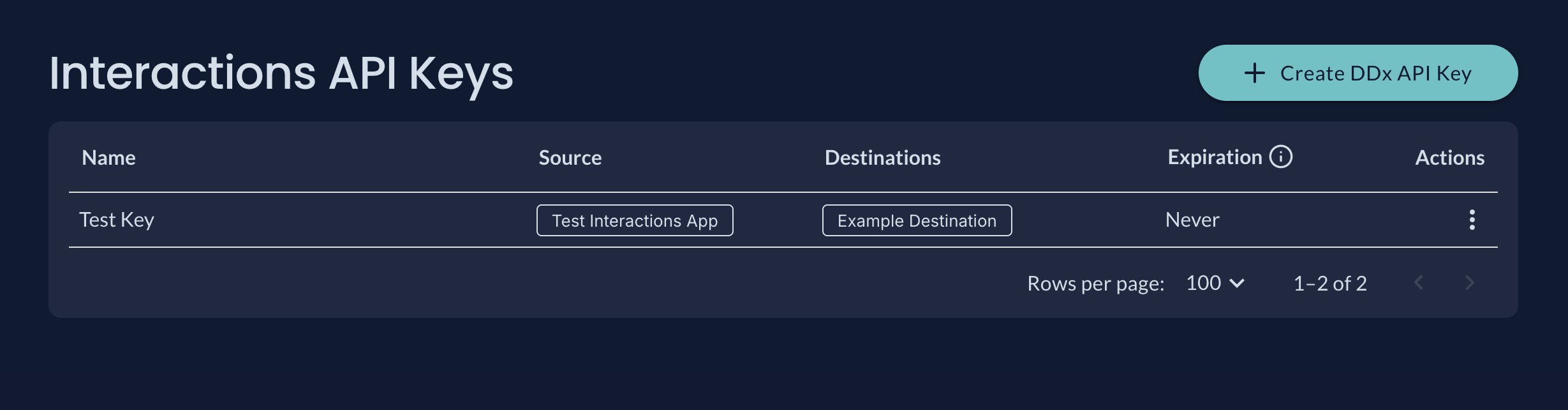
-
Configure your DDx API Key by giving it a name, selecting your data Source, and selecting the
DDx Exchangeas the data Destination.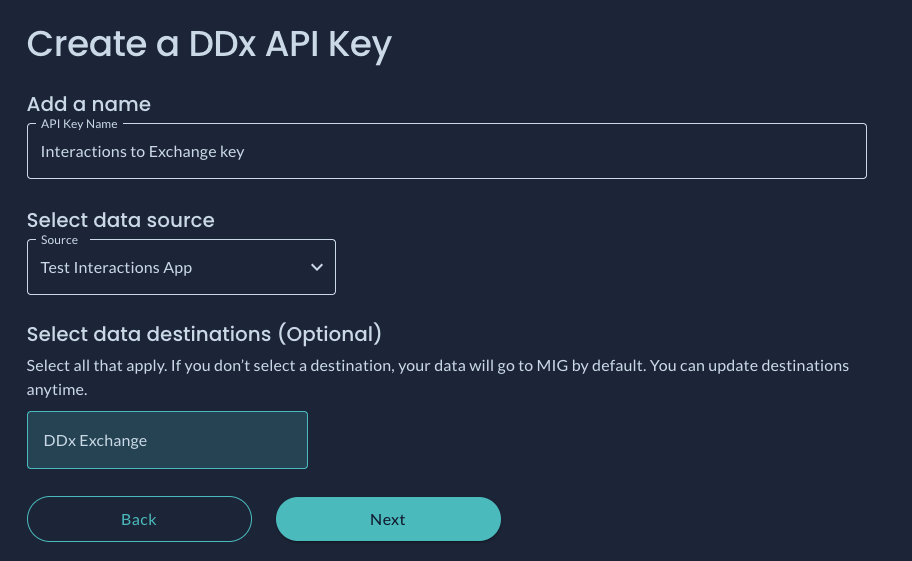
-
Select
Nextand you're done creating your DDx API Key!
Viewing & Sharing Your DDx API Key
Using the Admin API (recommended)
- You're already done! An email goes out notifying recipients of a new key available to view and use via the Admin API endpoints. It is sent to users holding the Workspace Owner role in the Source app's Workspace and in each Destination's Workspace. The API key is only viewable once.
Manual sharing
-
If your data source does not retrieve the API key via the Admin API, you will need to share your DDx API Key with your data source directly. These keys should be treated as a secret and shared securely with your data Source.
-
To view a DDx API Key, select
View DDx API Keyfrom the action menu to the right of the table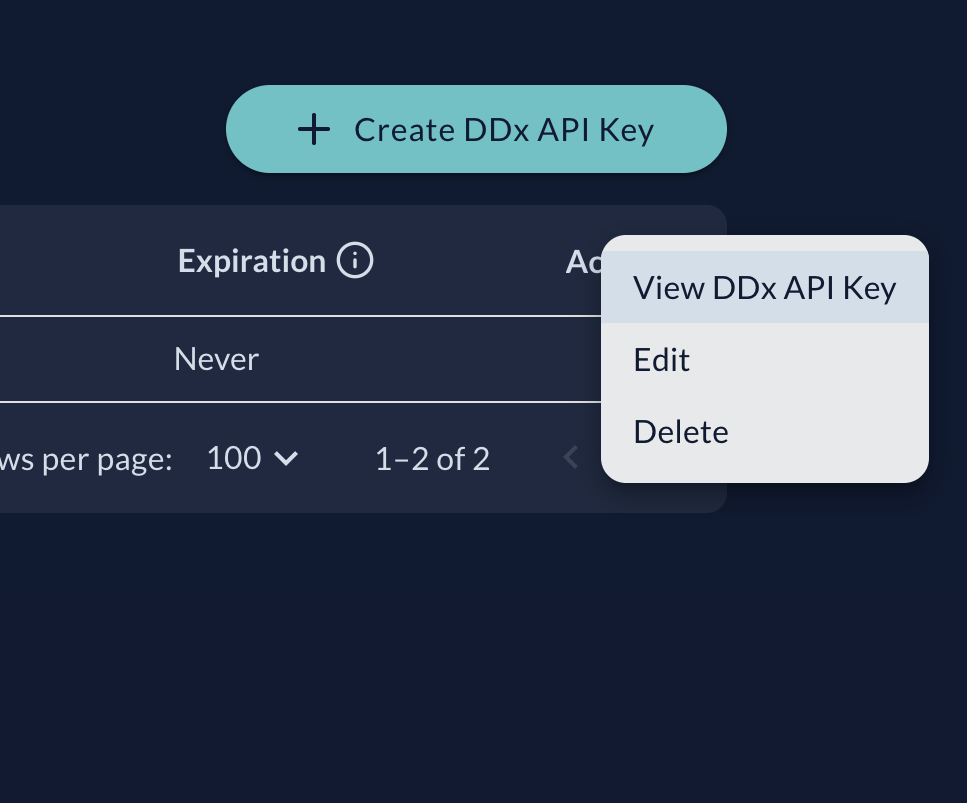
-
Here you can view & copy your API Key. Store this key securely as the key is only viewable once.
-
When you're done, click
Closeand securely store your key.
For any issues or support getting set up, please contact our Support team at [email protected].
Updated about 2 months ago