

Disconnecting an App
Disconnecting an App from your Workspace
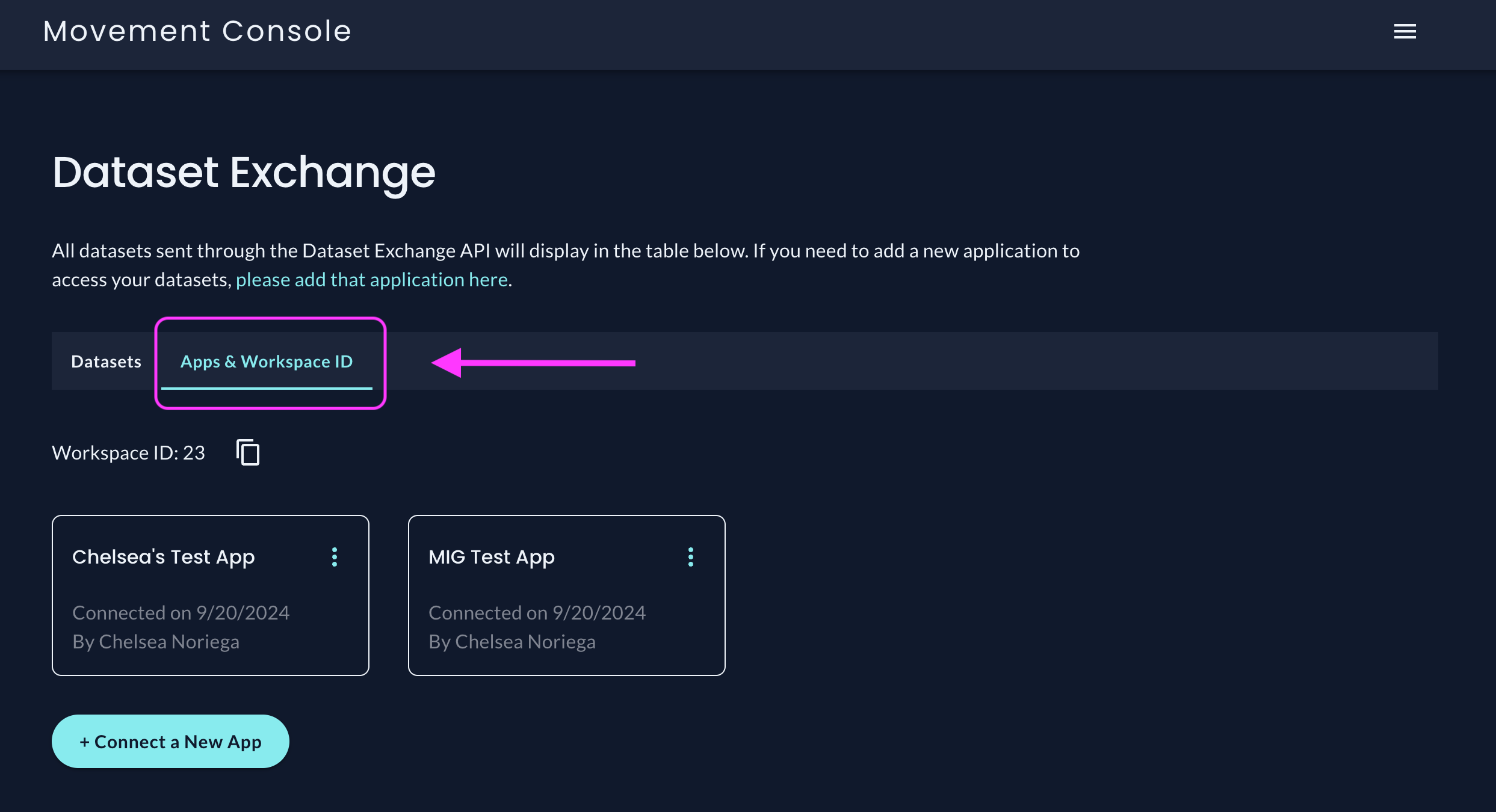
- In your Workspace, click the
Apps & Workspace IDtab:
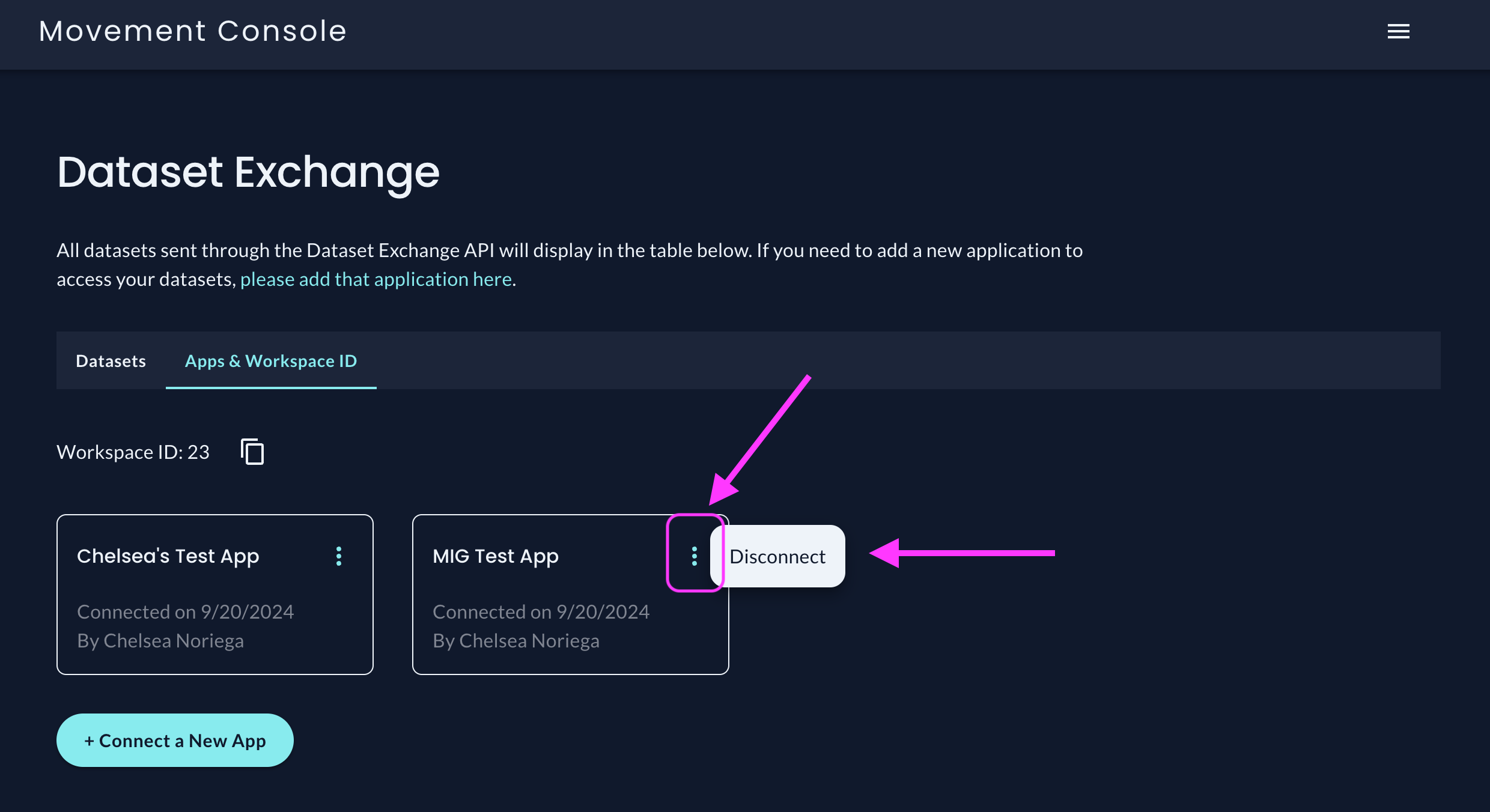
- Click the 3 vertical dots next to the App you'd like to disconnect from your Workspace to display the option
Disconnect:
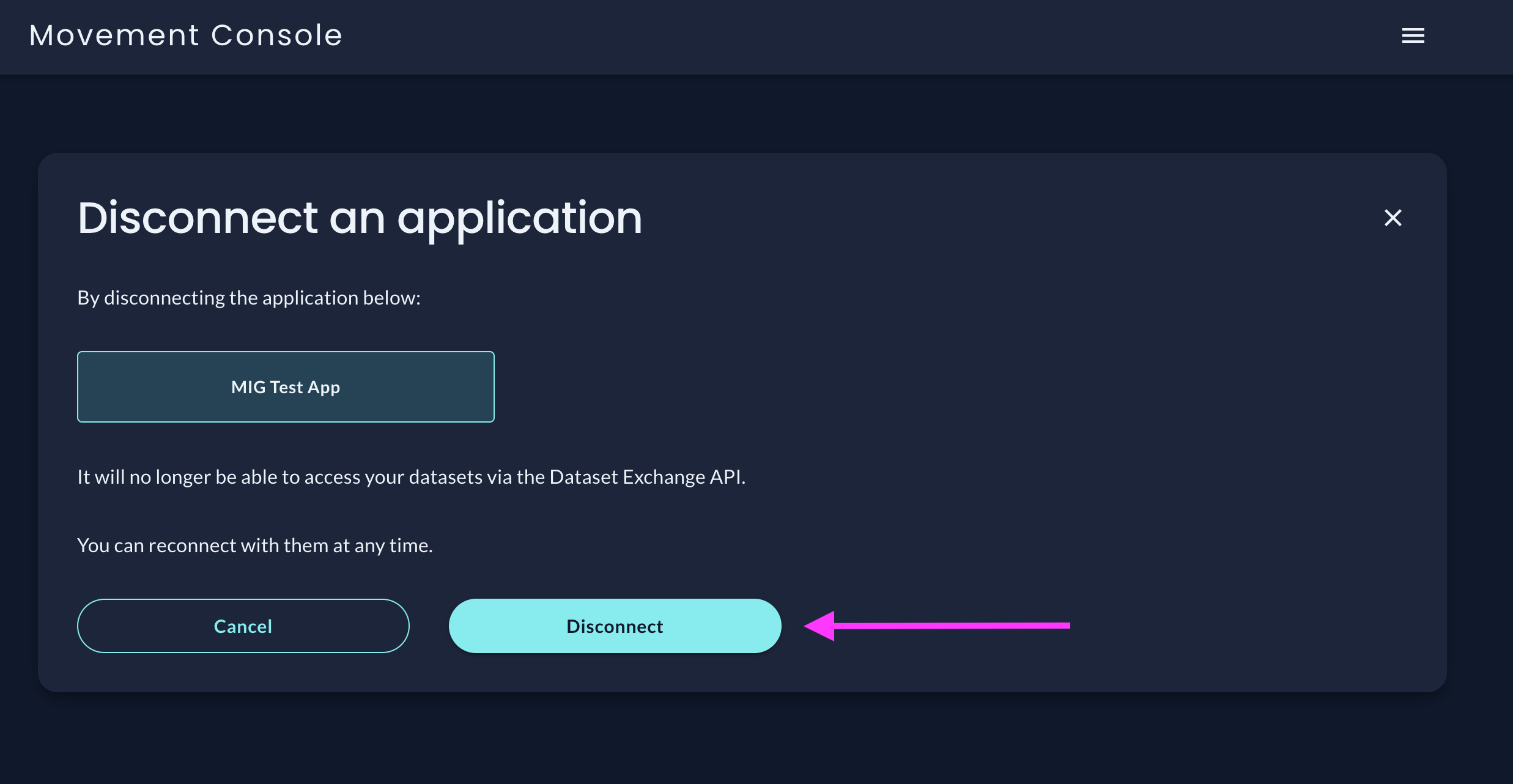
- Confirm you'd like to disconnect the selected App. You can reconnect to an App at any time, but reconnecting starts fresh: disconnecting permanently removes the App's access to all of your existing datasets, and reconnecting only grants access to datasets submitted afterwards. Use Adjusting Permissions to re-share existing datasets:
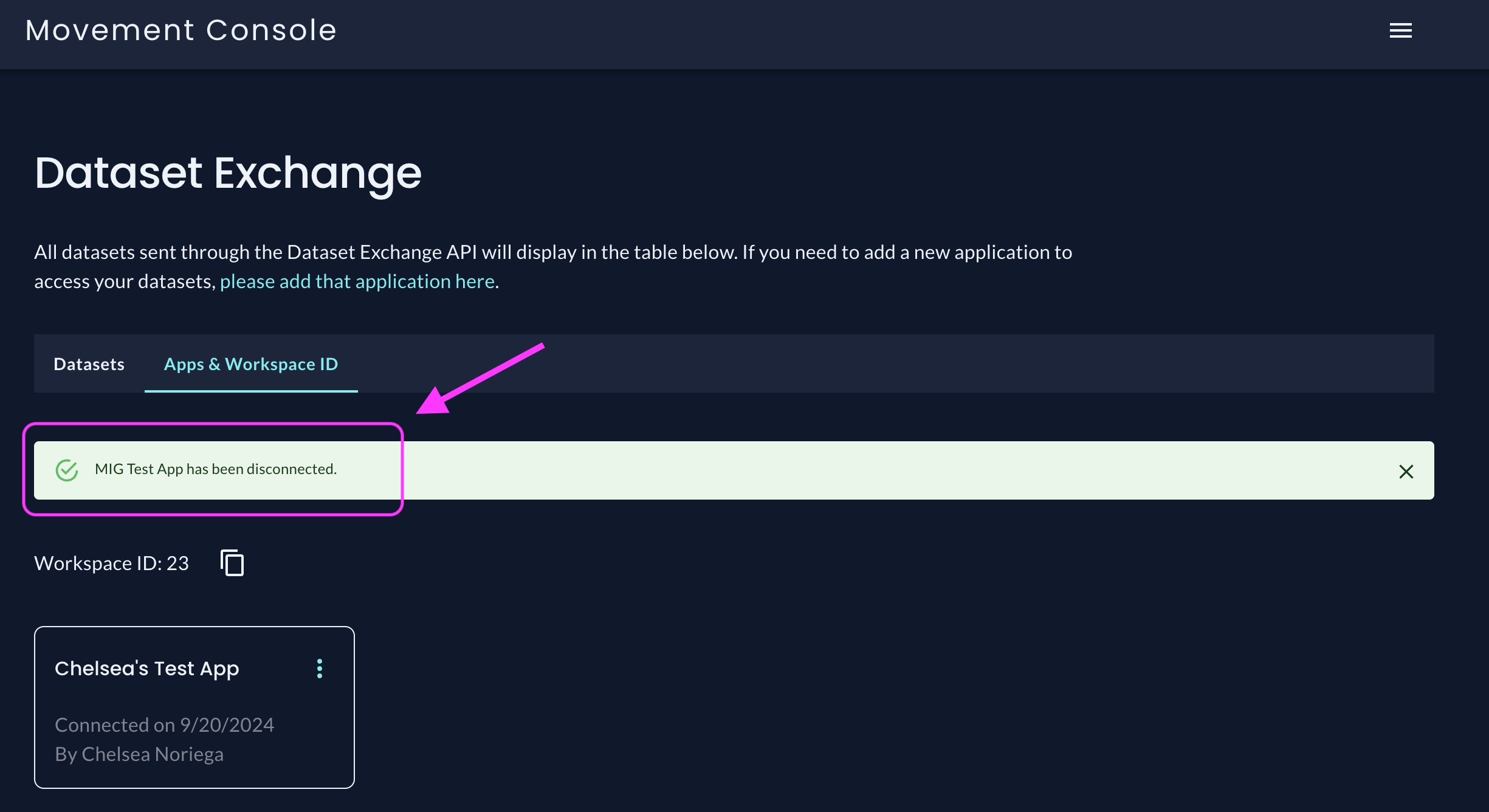
- Done! You should see a confirmation banner that the App has been disconnected from your Workspace:
If you previously provided your Workspace ID and Workspace Key to an App but have since disconnected, they will no longer have access to your datasets. Apps need your Workspace ID and Workspace Key and an active connection to your Workspace to access datasets.
Updated 3 months ago
What’s Next
Did this page help you?