

BigQuery
Use the Dataset Exchange API to send datasets to your BigQuery instance!
In order to send datasets to BigQuery, a BigQuery Dataset must already exist in your Google Cloud project.
Connecting to the BigQuery App
In your DDx API Console account:
- Click through “View & Manage Datasets”.
- Select the “Apps & Workspace ID” tab.
- Select “+ Connect a New App”. If you have no Apps connected yet, this button reads “+ Connect Application”.
- Select “BigQuery” from the App options.
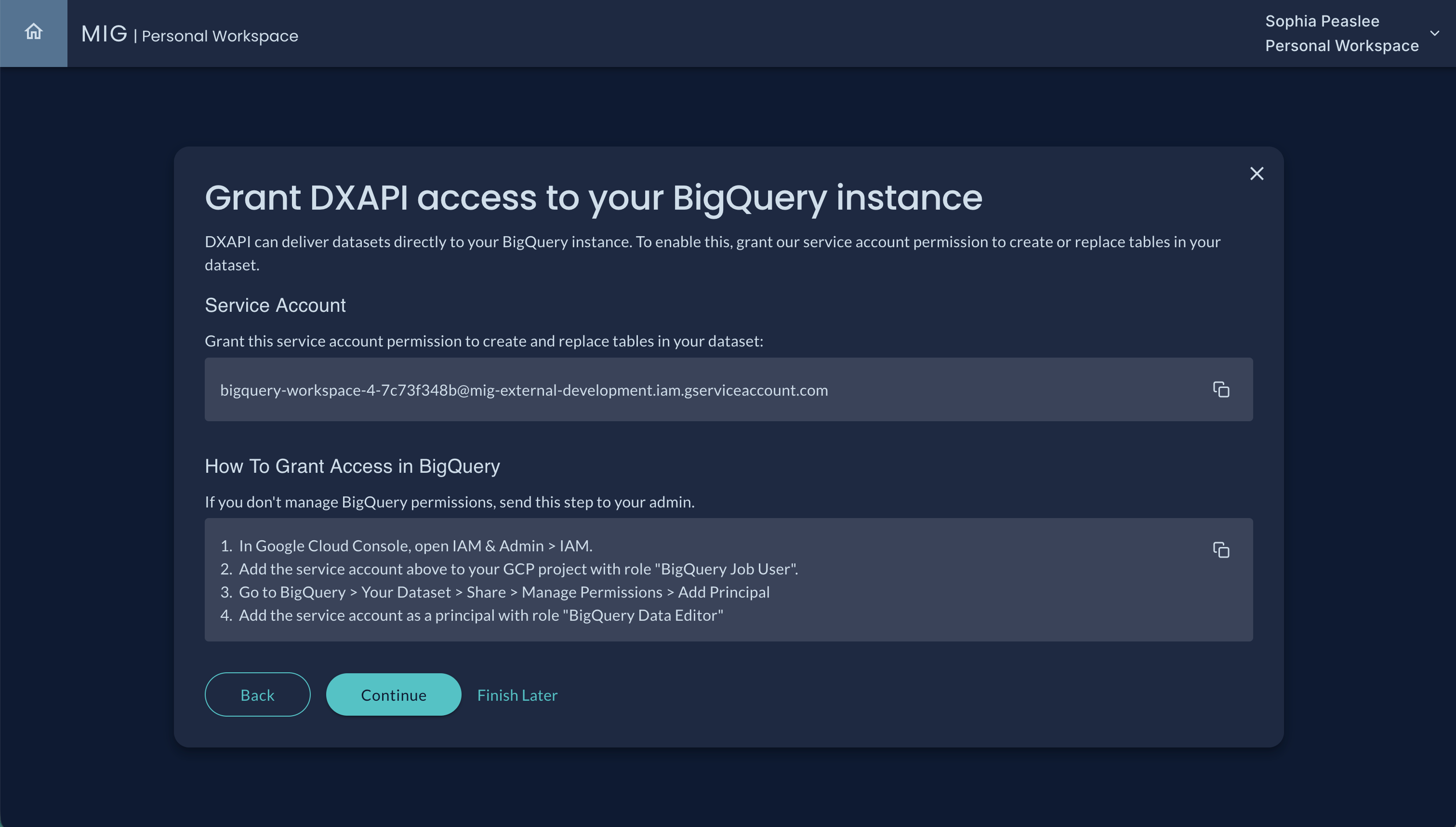
- A service account will be generated for you. This service account is the account the Dataset Exchange API (DXAPI) will use to load datasets into tables in your BigQuery Dataset.
Review each steps with visual aids below!
Giving your account access
-
In your Google Cloud Console, open IAM & Admin > IAM.
-
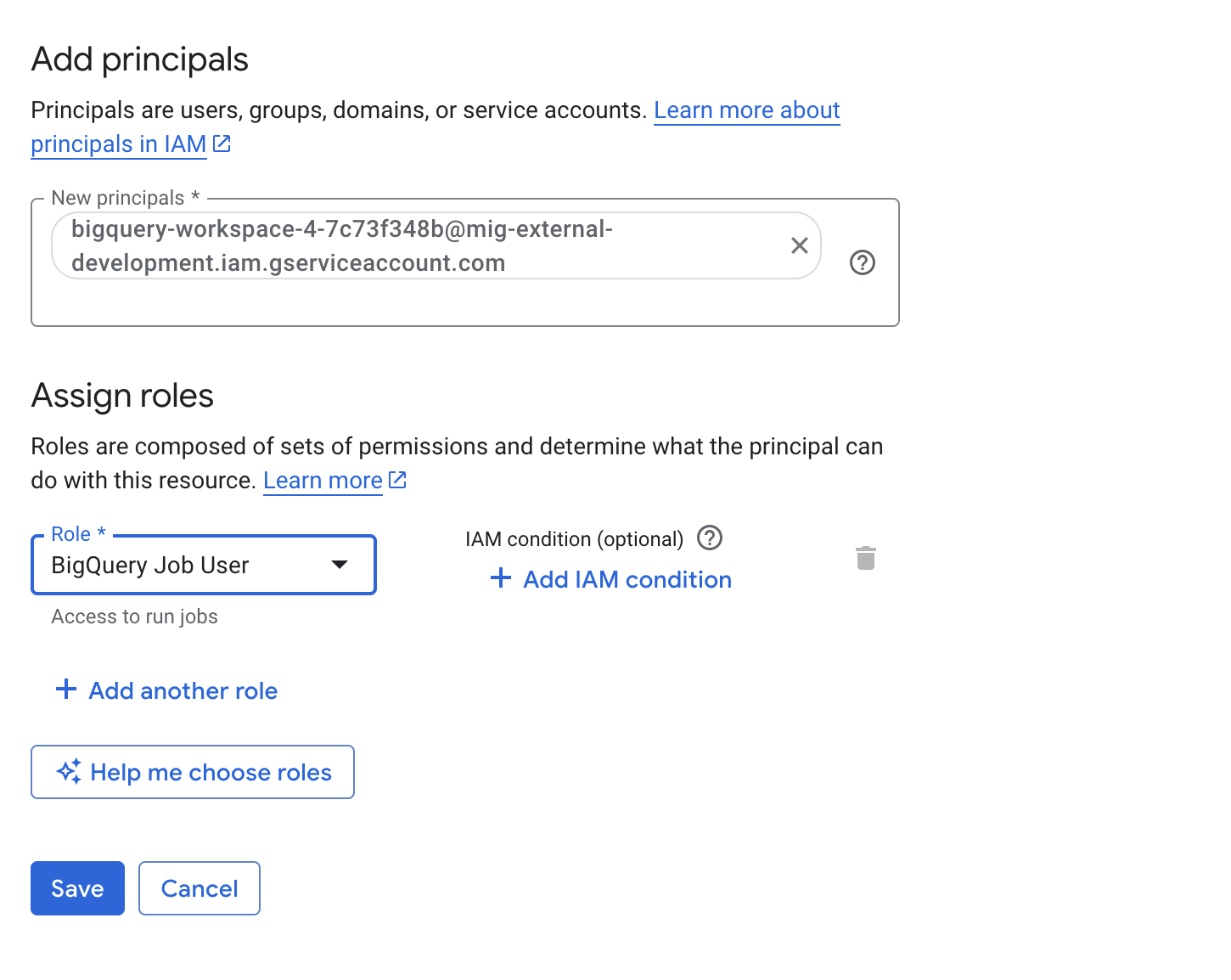
Add the generated service account to your project with the role “BigQuery Job User”. The service account must be given the role BigQuery Job User at your GCP project level, not the BigQuery dataset level.
BigQuery Job UserThe service account must be given the role BigQuery Job User at your GCP project level, not the BigQuery dataset level.
-
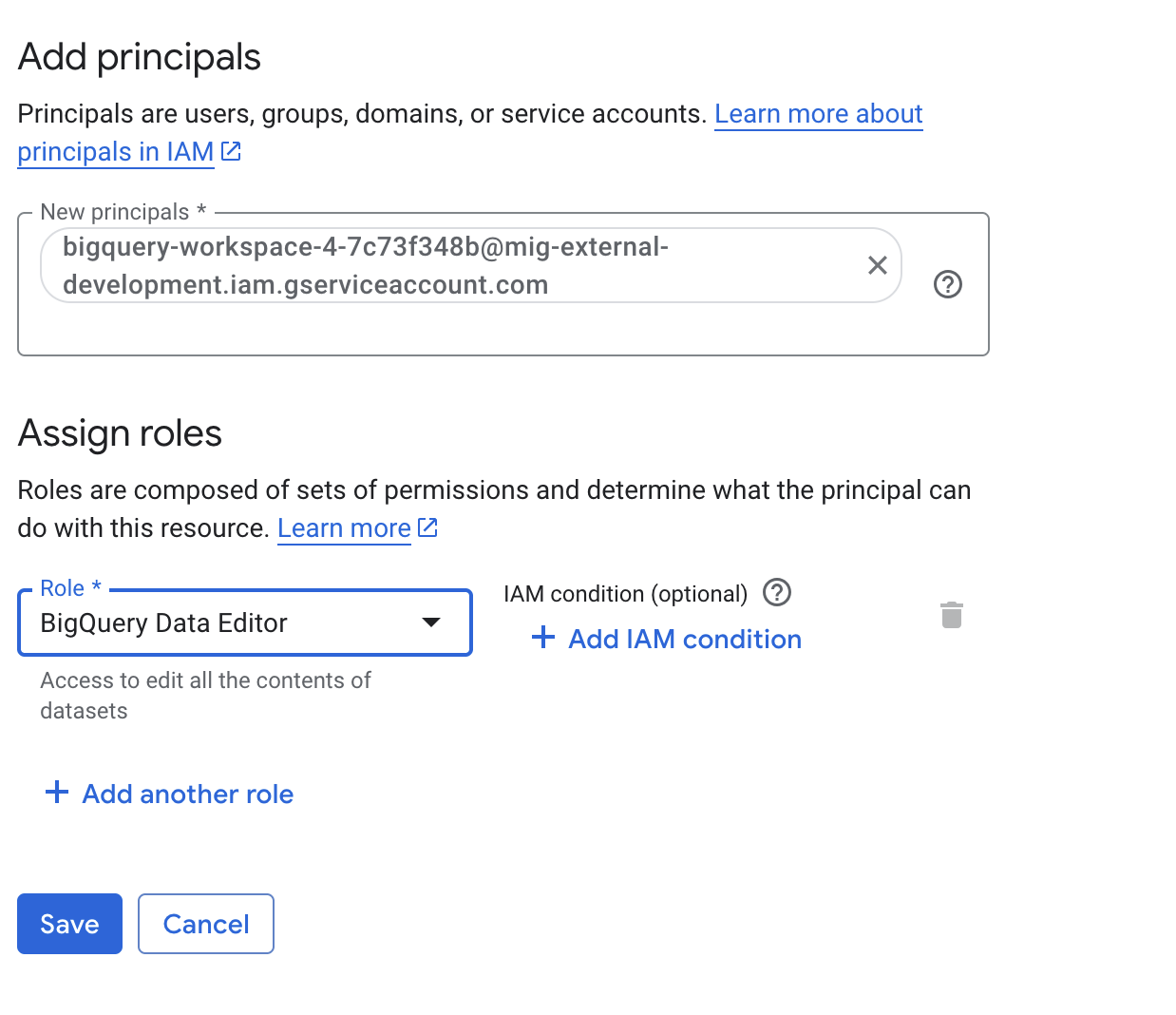
Go to BigQuery, on your Dataset click Share > Manage Permissions > Add Principal.
-
Add the service account as a principal with role “BigQuery Data Editor”
BigQuery Data EditorThe service account must be given the role of BigQuery Data Editor at the BigQuery dataset level
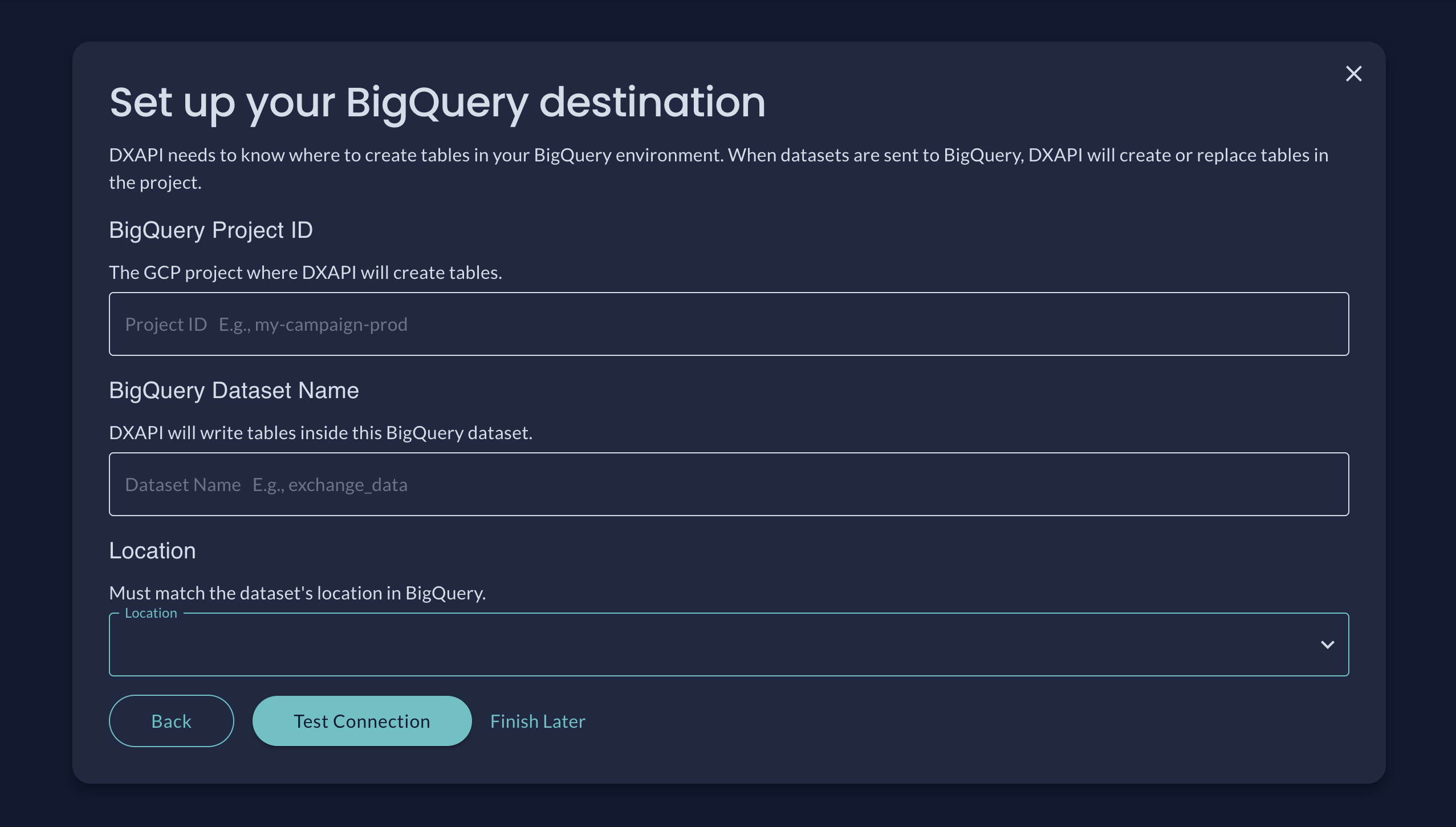
- Return to your DDx API Console account and click "Continue".
- Submit the GCP Project ID, your BigQuery Dataset name and the location of your Dataset. If you did not set a location when you created your Dataset the default location is “Multi-Region US".
-
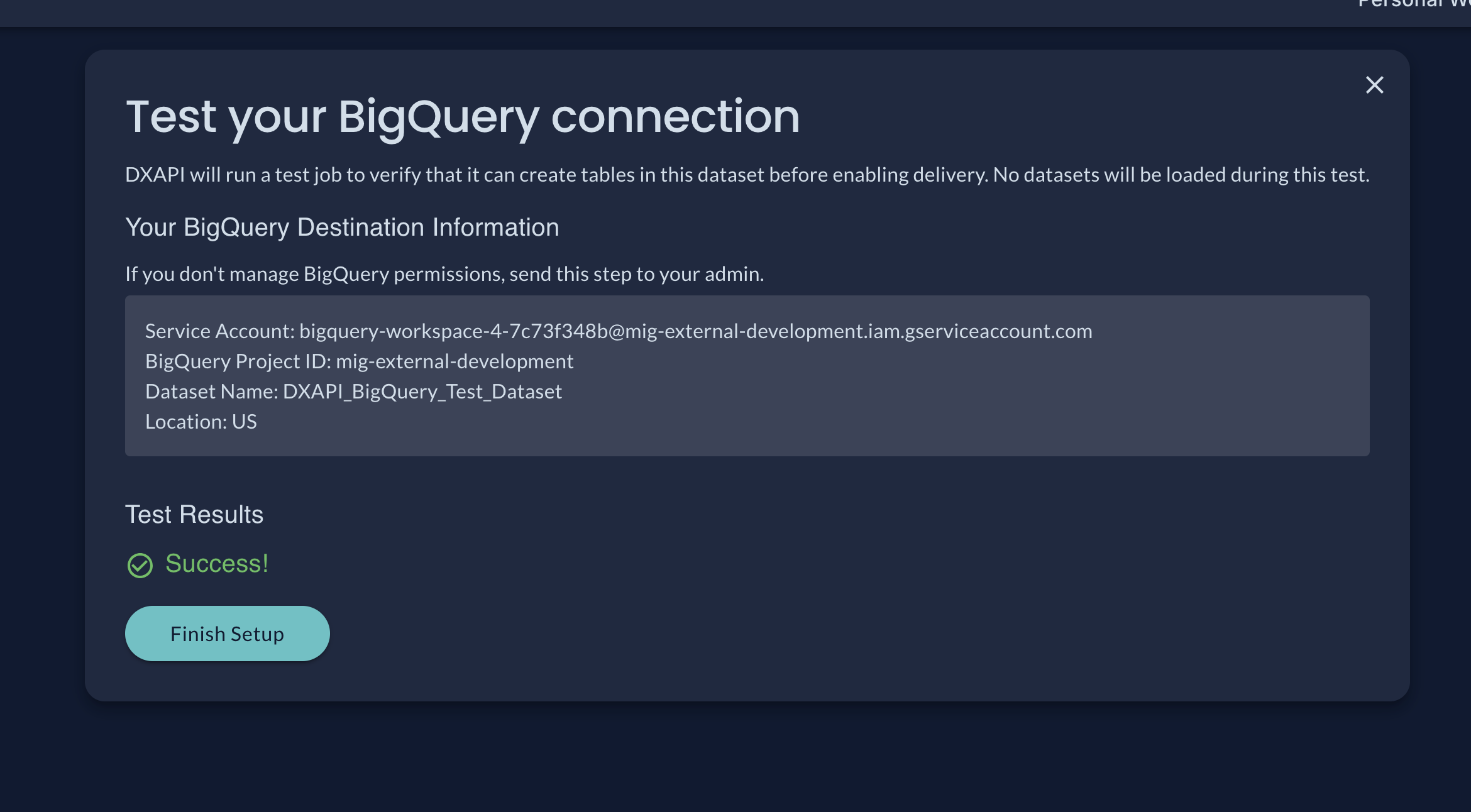
Click 'Test Connection'.
- DXAPI will run a test job to verify that it has the correct permissions to create tables on the Dataset before enabling delivery. No records will be loaded during the test.
-
Upon a successful tested connection click 'Finish Setup'.
- Done!
Once you send datasets to BigQuery the tables in your BigQuery Dataset will be named after your DXAPI Dataset name, with any character that isn't a letter, number, or underscore replaced by an underscore. A dataset named Turnout Q3 - CA becomes a table named Turnout_Q3___CA. See BigQuery's table naming requirements for the underlying constraints.
Troubleshooting
If the test results are unsuccessful, confirm the BigQuery Dataset details are correct and that the service account has been given the correct IAM permissions as detailed above.
- Make sure there are no trailing whitespaces on the Dataset Name or Project ID.
- Confirm the selected location is correct.
- Confirm the generated service account has been given the BigQuery Job User and BigQuery Data Editor roles and that they have been saved. It can sometimes take a couple minutes to propagate.
If errors continue please reach out to [email protected] for further assistance!
You can leave and finish the set up any time; a ‘Pending Setup’ message will show on the app and datasets will not be sent to BigQuery until the connection has been successfully tested.
Updated 2 months ago