

Data Owners: VAN Canvass Responses as a Destination
Data Owners
Overview
Sending your Interactions API data to VAN's Canvass Responses endpoint requires a few quick setup steps outlined on this page.
We've prepared a video walkthrough of this process to compliment this guide. It's available on Loom here.
If you are a Tech Partner, please visit the Tech Partner integration section of this doc!
Storing your VAN API Key as an External Key in your Workspace
-
Log in to your Organizational Workspace in the Console.
-
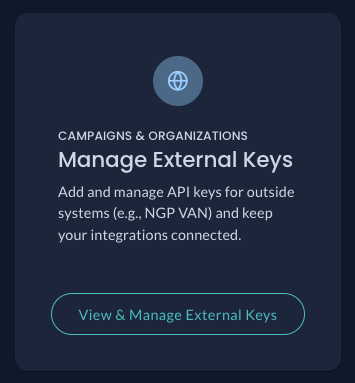
Click the "View & Manage External Keys" button on the dashboard
-
Click the "Add External Key" button in the top right corner of the page
-
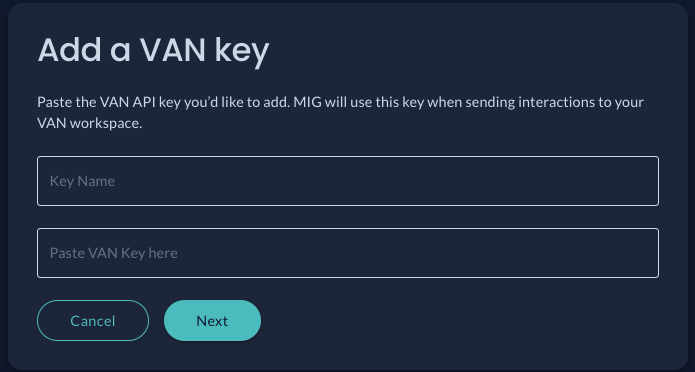
Give your VAN API key a name, paste in the key & click "Next"
-
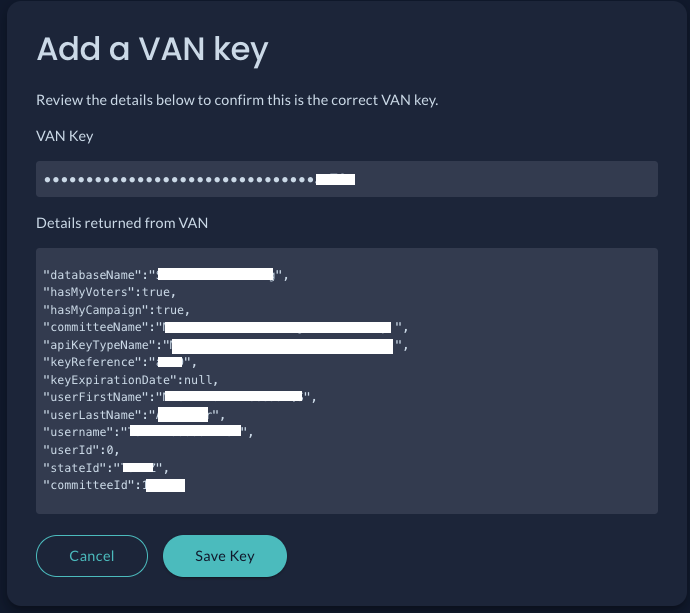
Our system fetches data about the key you provided. Carefully review the details and confirm they are accurate and expected.
-
Click "Save Key" if the data is correct
Configuring a DDx API Key for VAN as a Destination
-
Navigate to your Organizational Workspace's dashboard by clicking the home icon in the top left of your screen
-
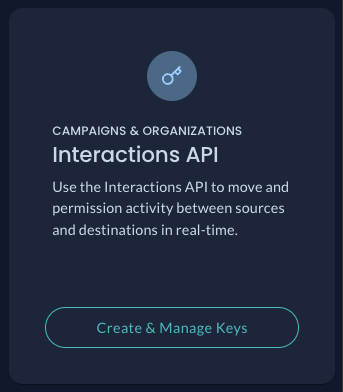
Click the "Create & Manage Keys" button under Interactions API
-
Click "+ Create DDx API Key" button
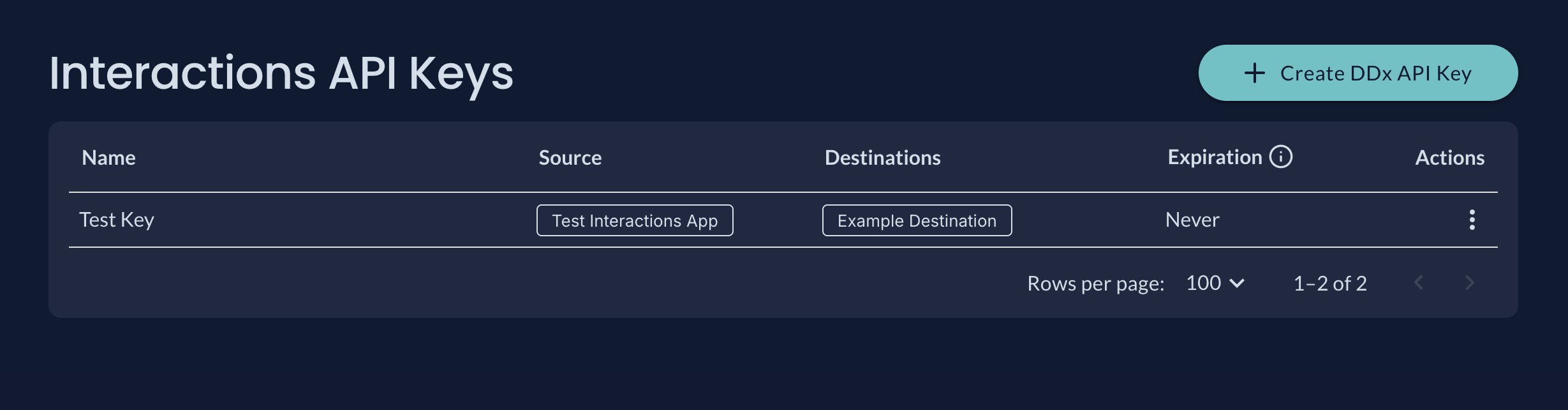
-
Configure your DDx API Key by giving it a name, selecting your data source, and selecting the "VAN API Canvass Responses" as the data destination.
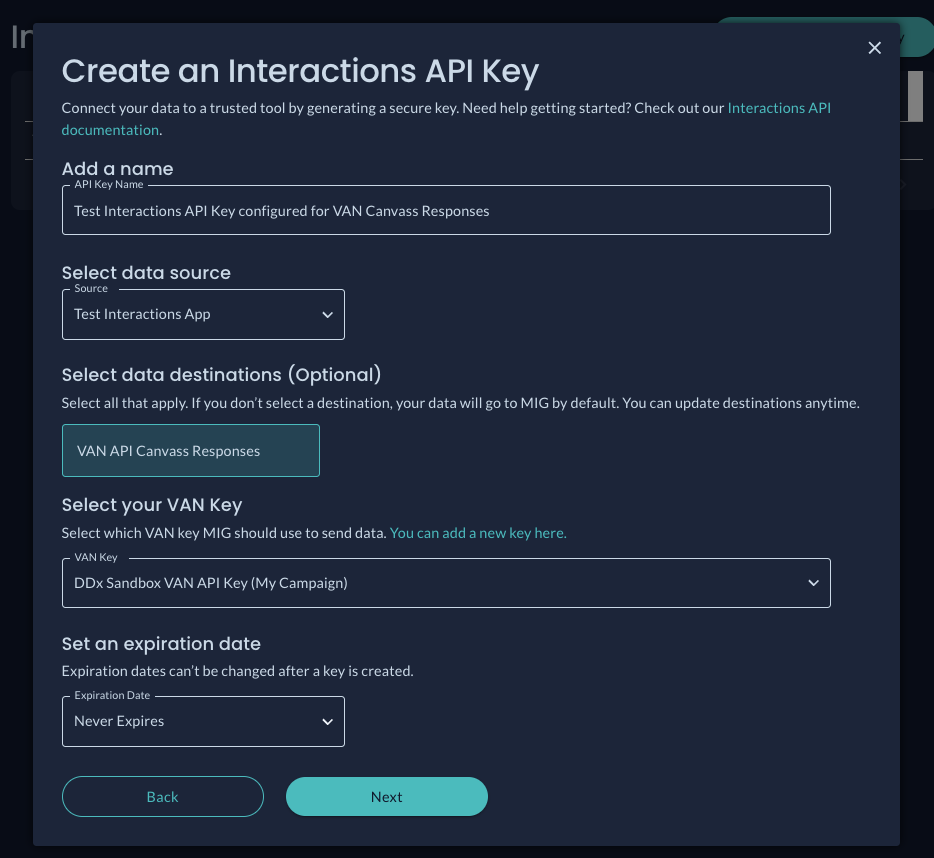
- Select the VAN API Key you want used to send data to VAN Canvass Responses.
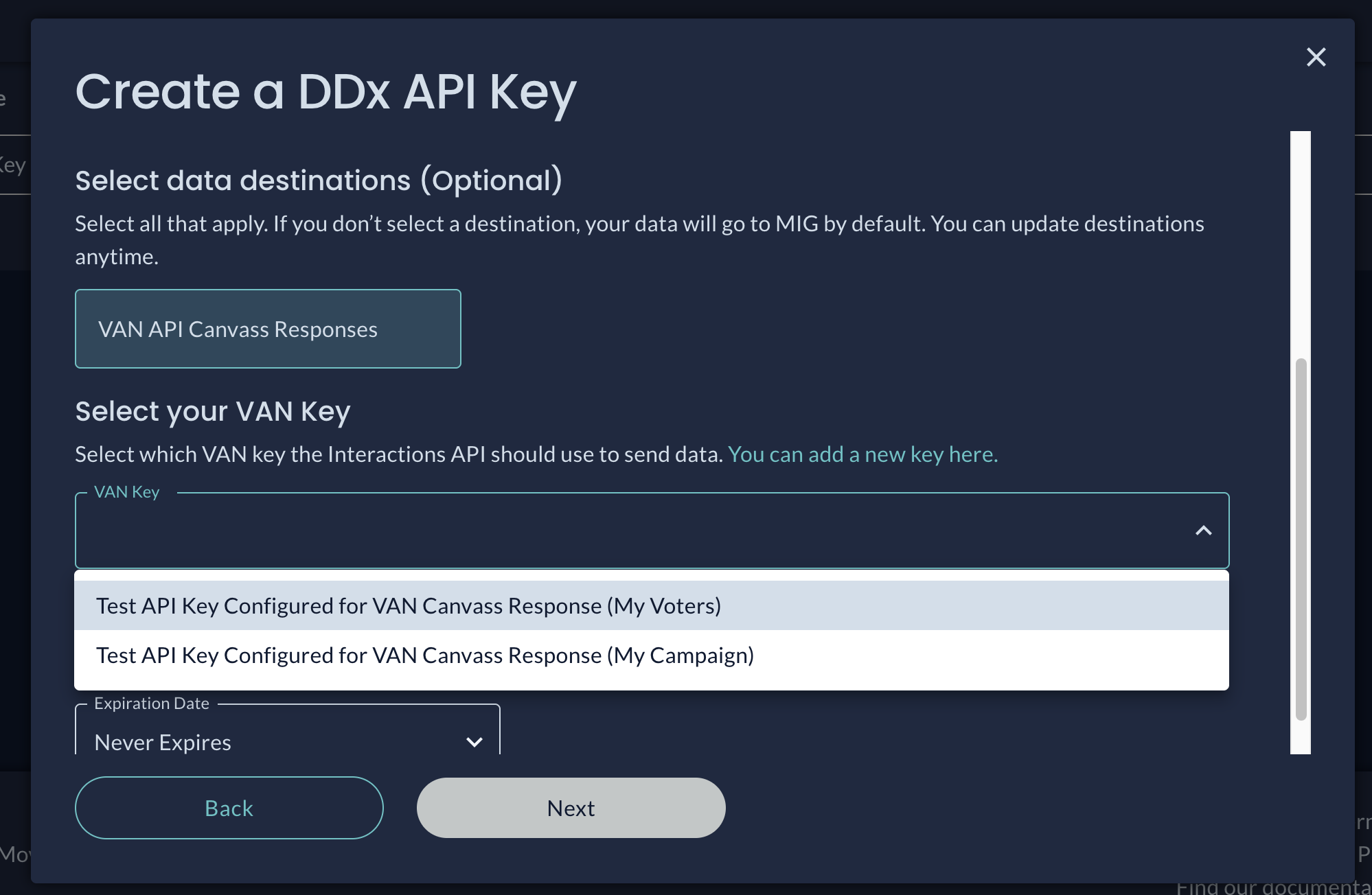
Your VAN API Key will appear in the "VAN Key" dropdown twice if it supports both VAN database modes. Be sure to select the database mode where you want data to land.
- Select "Next" and you're done creating your DDx API Key!
Viewing & Sharing Your DDx API Key
-
You will need to share your DDx API Key with your data source. These keys should be treated as a secret and shared securely with your data source.
-
To view a DDx API Key, select
View DDx API Keyfrom the action menu to the right of the table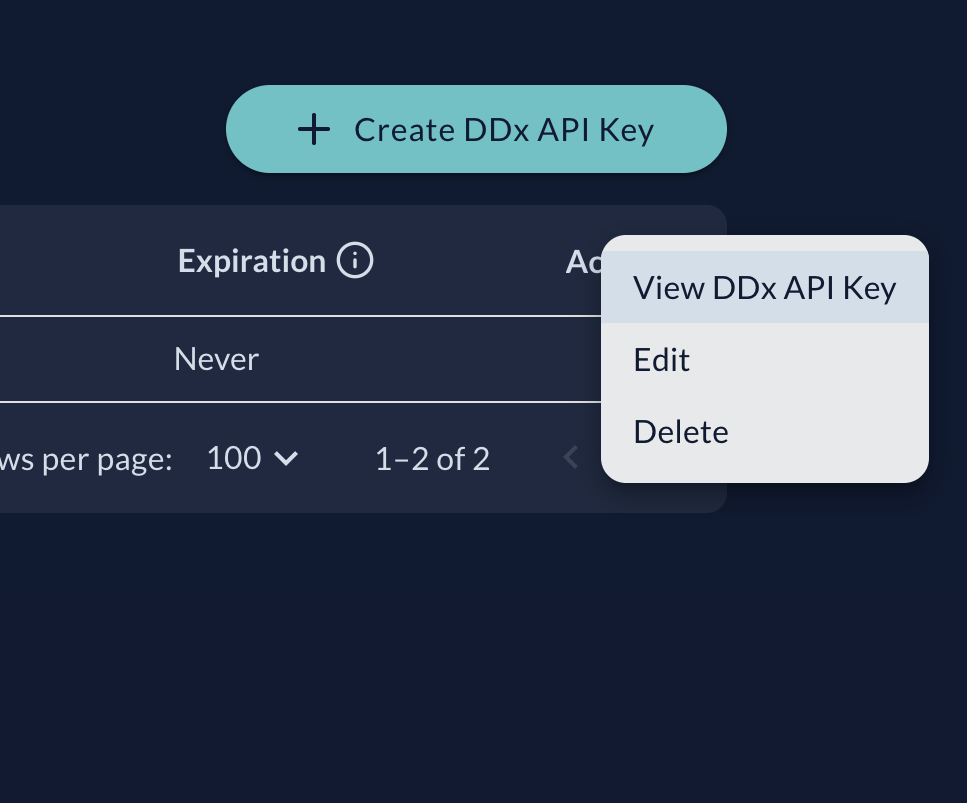
-
Here you can view & copy your API Key. Store this key securely as the key is only viewable once.
-
When you're done, click close and securely store your key.
Troubleshooting
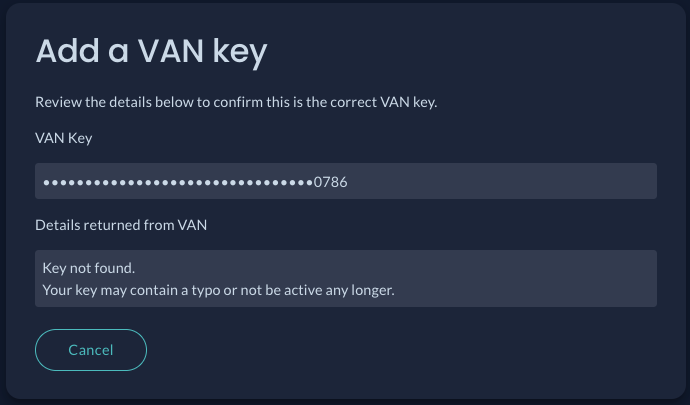
If you see an error adding your VAN API Key, click "Cancel" and try entering your key again. Ensure the VAN Key information is entered correctly, and if the error persists, check if the key is expired in VAN's system.
For support getting set up or questions about sending data to VAN's Canvass Responses endpoint, please reach out to us at [email protected]!
Updated 4 months ago